


Most routers ship with “safe” default settings, and that makes sense. Manufacturers want the whole setup process to be as simple and plug-and-play as possible. But those default settings aren’t always ideal. If you’ve spent hours researching which router to buy, you should definitely spend a few more minutes optimizing it.
Turn off WPS
The outdated feature isn’t worth the risk

You may have noticed a WPS (or Wi-Fi Protected Setup) button on your router and never known what it’s for. Its main purpose is to let you connect devices to the network without entering that complex Wi-Fi password you’ve set.
Yes, WPS sounds useful, which is also why it comes pre-enabled on most routers. But there’s one problem. WPS PIN authentication is vulnerable to brute-force attacks, which means attackers can also gain access to the network without knowing the Wi-Fi password. So if you never plan to use the WPS button to connect devices, it’s better to turn it off entirely.
Use QoS to prioritize important devices
Make sure your gaming PC gets first dibs

By default, your router treats every device on the network equally. That seems fair, but it can also be a problem when one of your devices starts downloading large updates or backing up thousands of photos to the cloud and leaves other devices competing for bandwidth.
Quality of Service (or QoS) helps you fix this. It basically lets you tell the router which devices should get priority, so your gaming PC or your phone never has to fight for bandwidth. Some routers can even prioritize certain types of traffic with QoS. For instance, you can set high priority for gaming and streaming while setting low or medium priority for web browsing and messaging.
Change Wi-Fi channel
Your neighbors could be slowing down your Wi-Fi


 Credit: Shimul Sood / MakeUseOf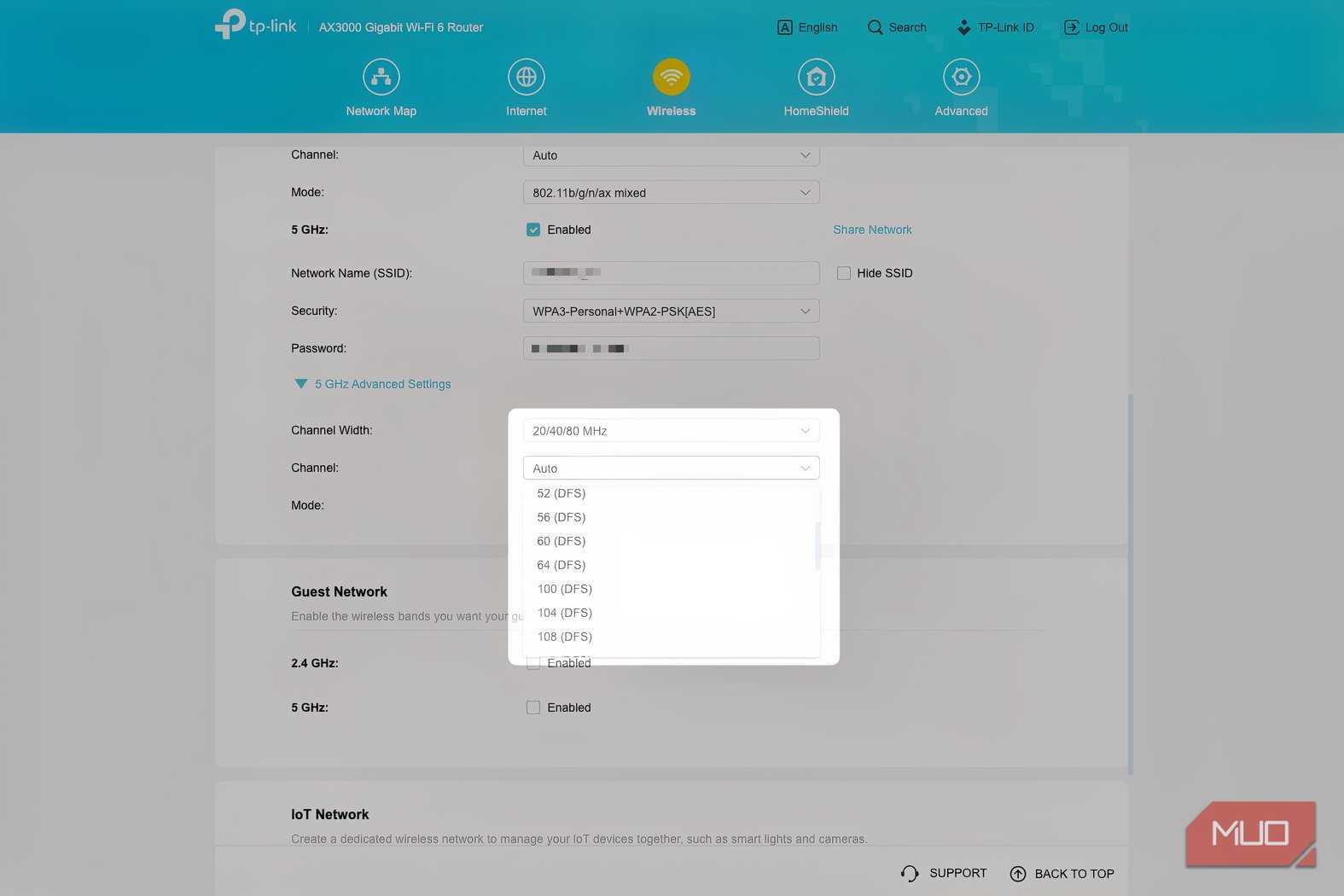
 Credit: Yadullah Abidi / MakeUseOf
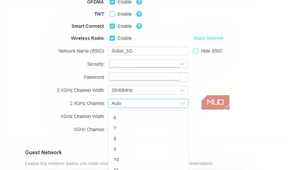
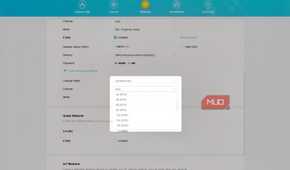
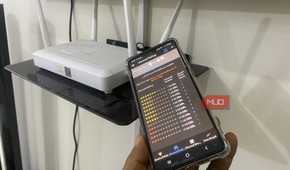


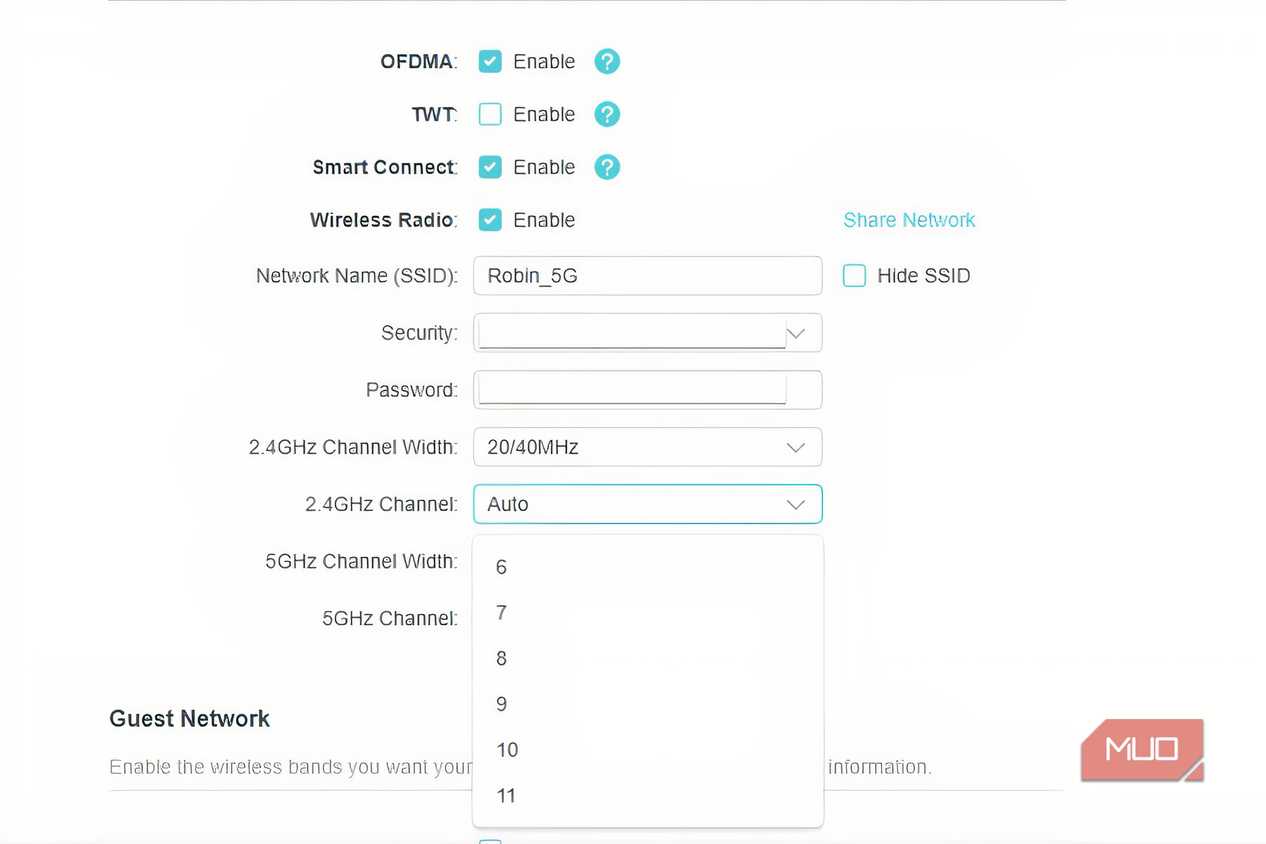
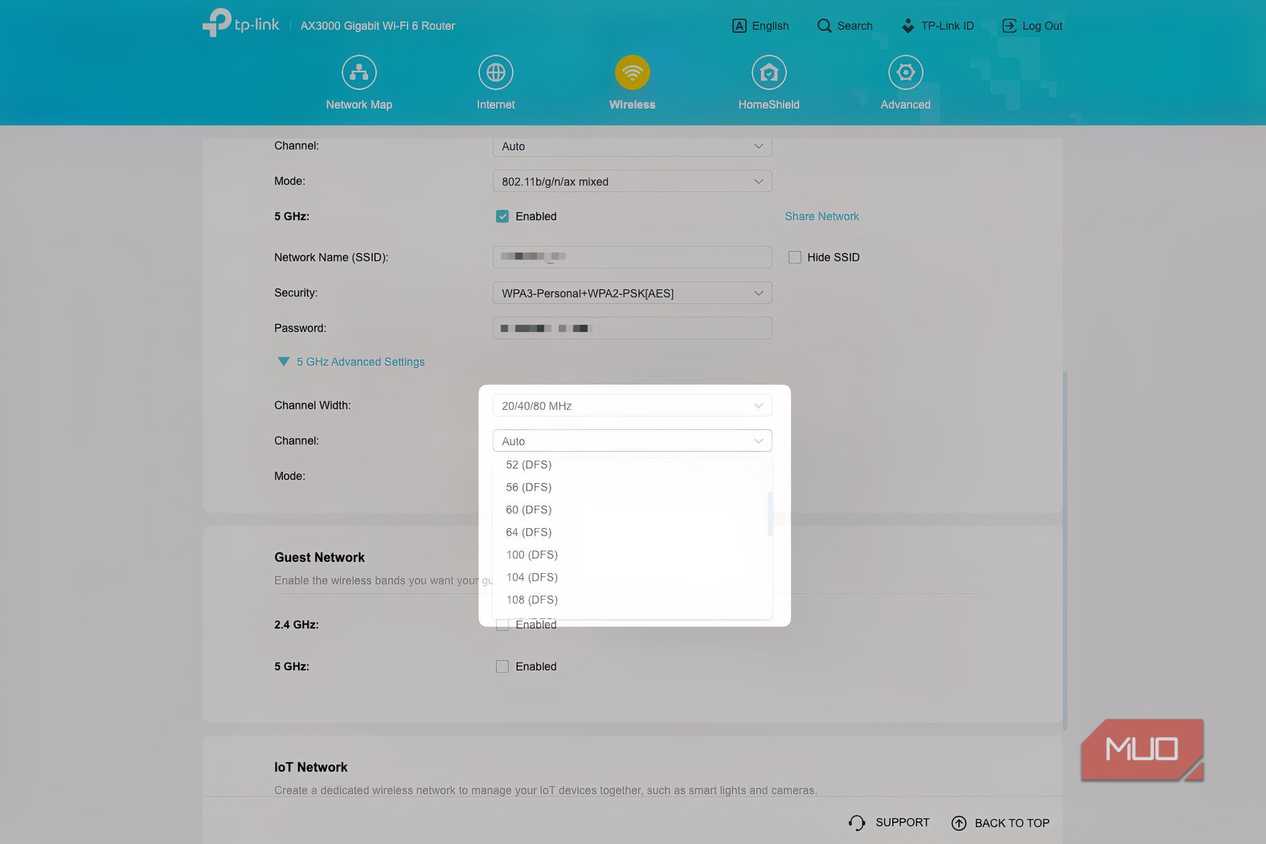
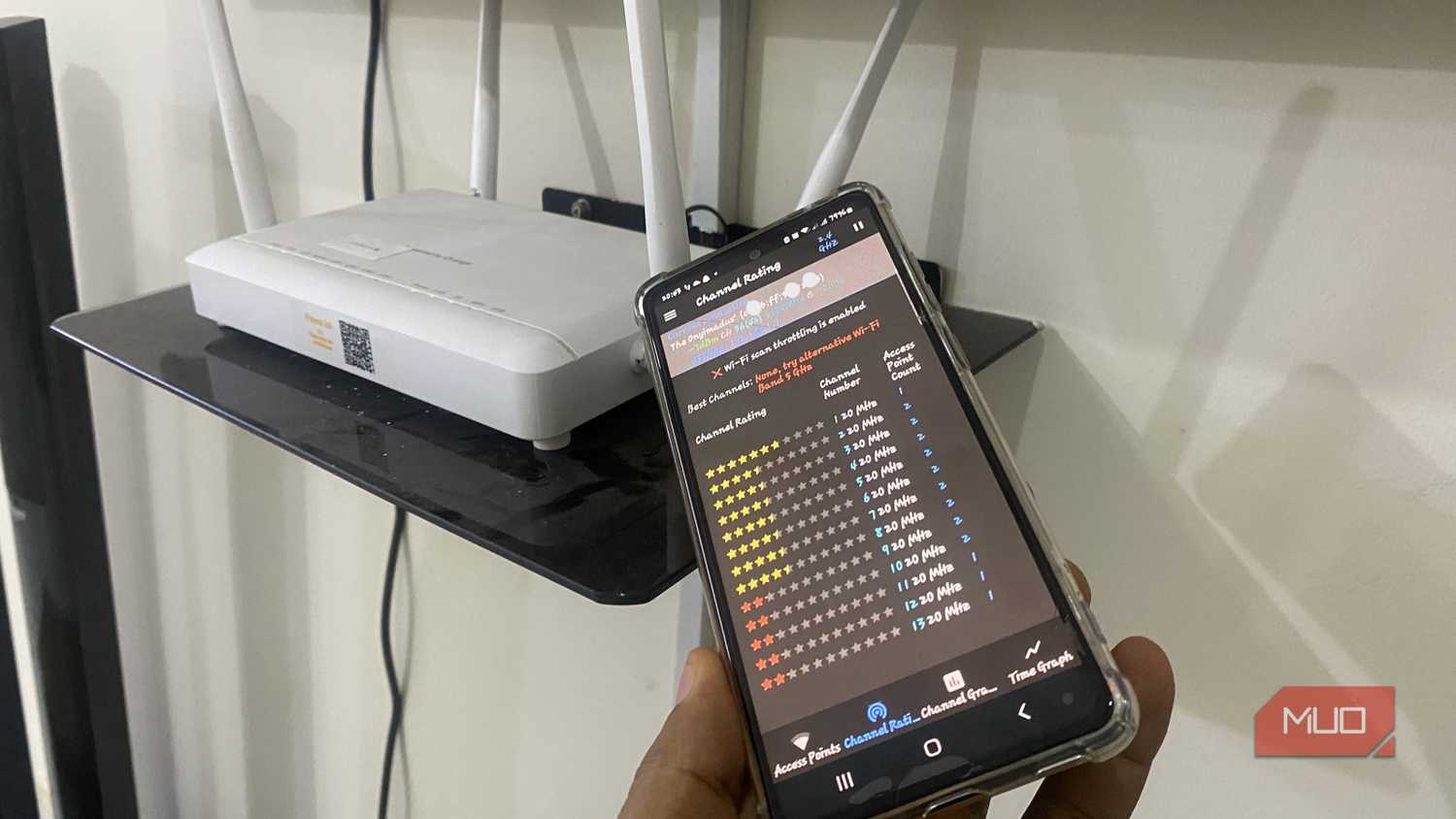
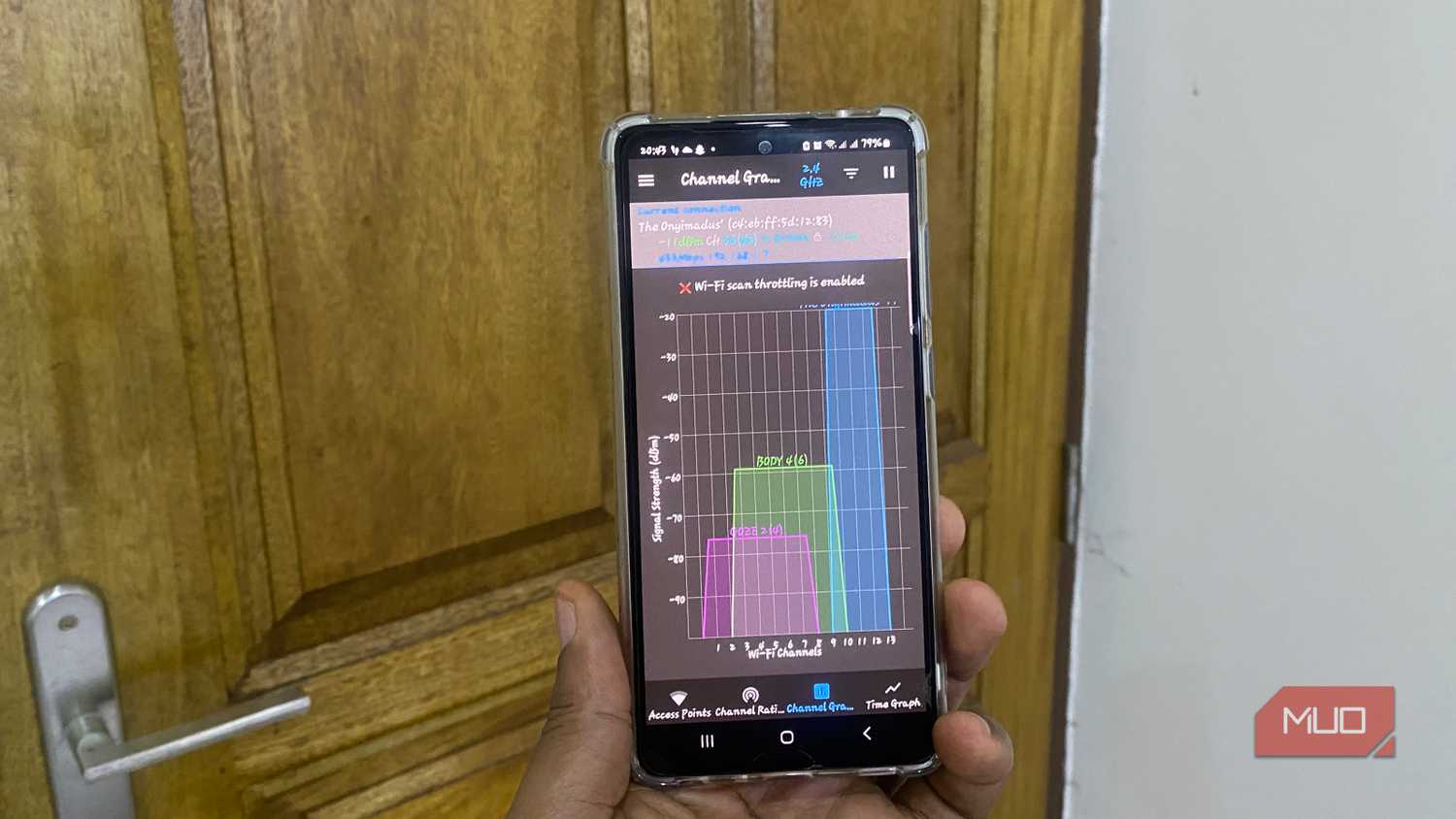
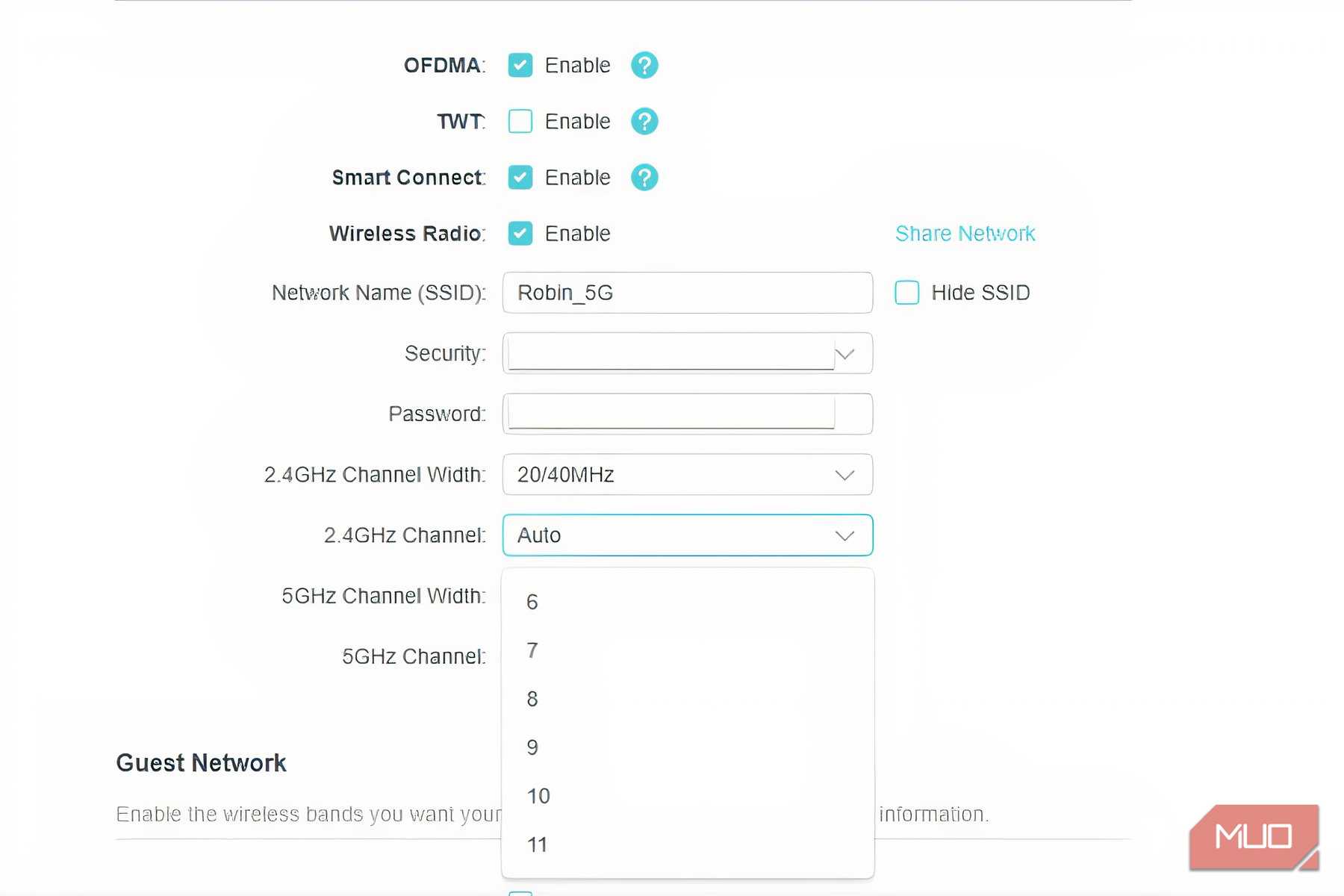
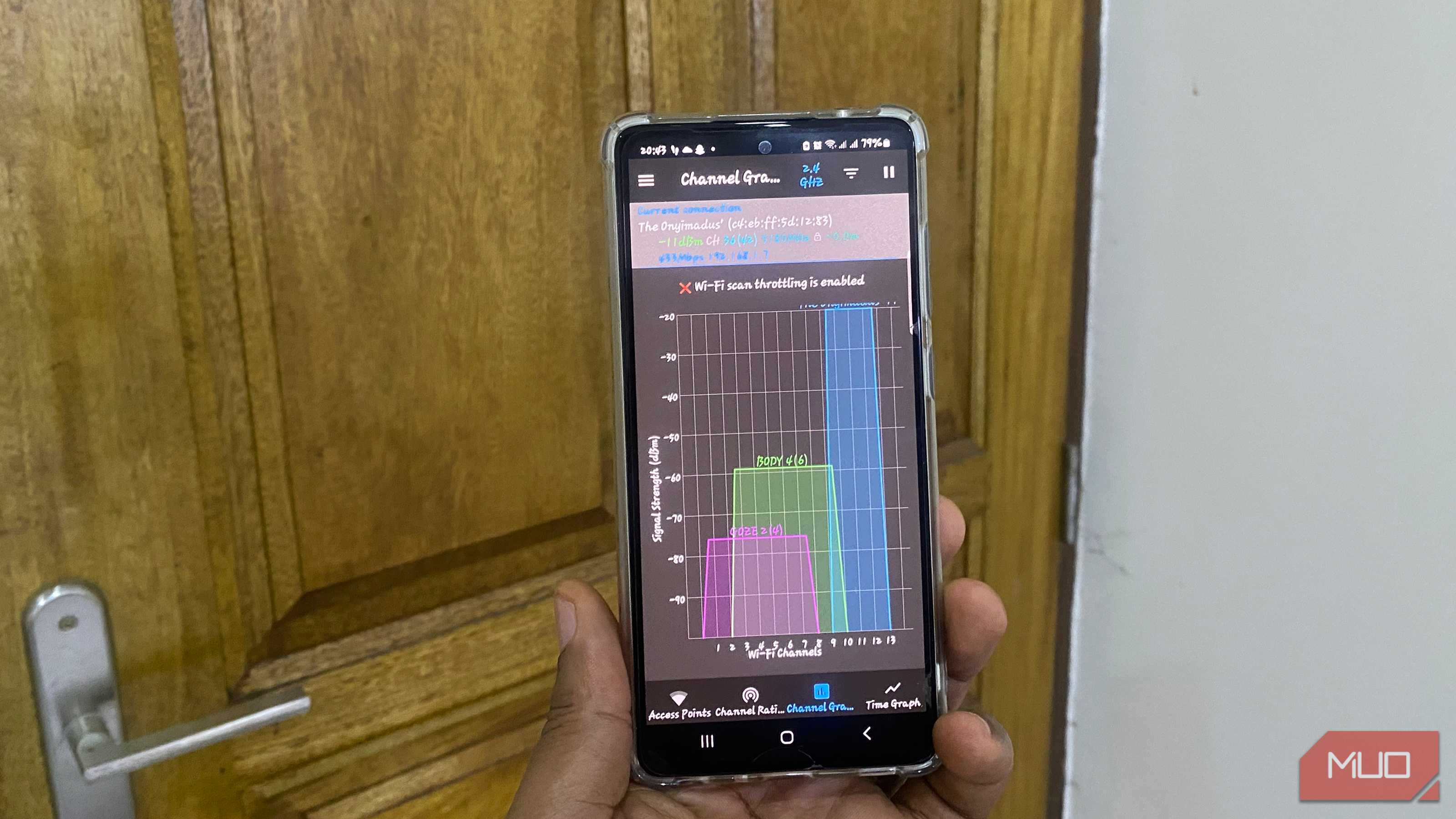
Most routers are configured to choose a Wi-Fi channel automatically, which usually works fine. But if you live in a congested area where a lot of your neighbors’ routers are doing the same, it can be a problem. When too many routers end up broadcasting on the same channel, it slows everything down.
An easy way to avoid this is to pick a less crowded channel manually. The 2.4GHz band is where this matters the most, because the interference is more common there. The 5GHz and 6GHz bands usually have more channels available, but yes, they can also become congested.
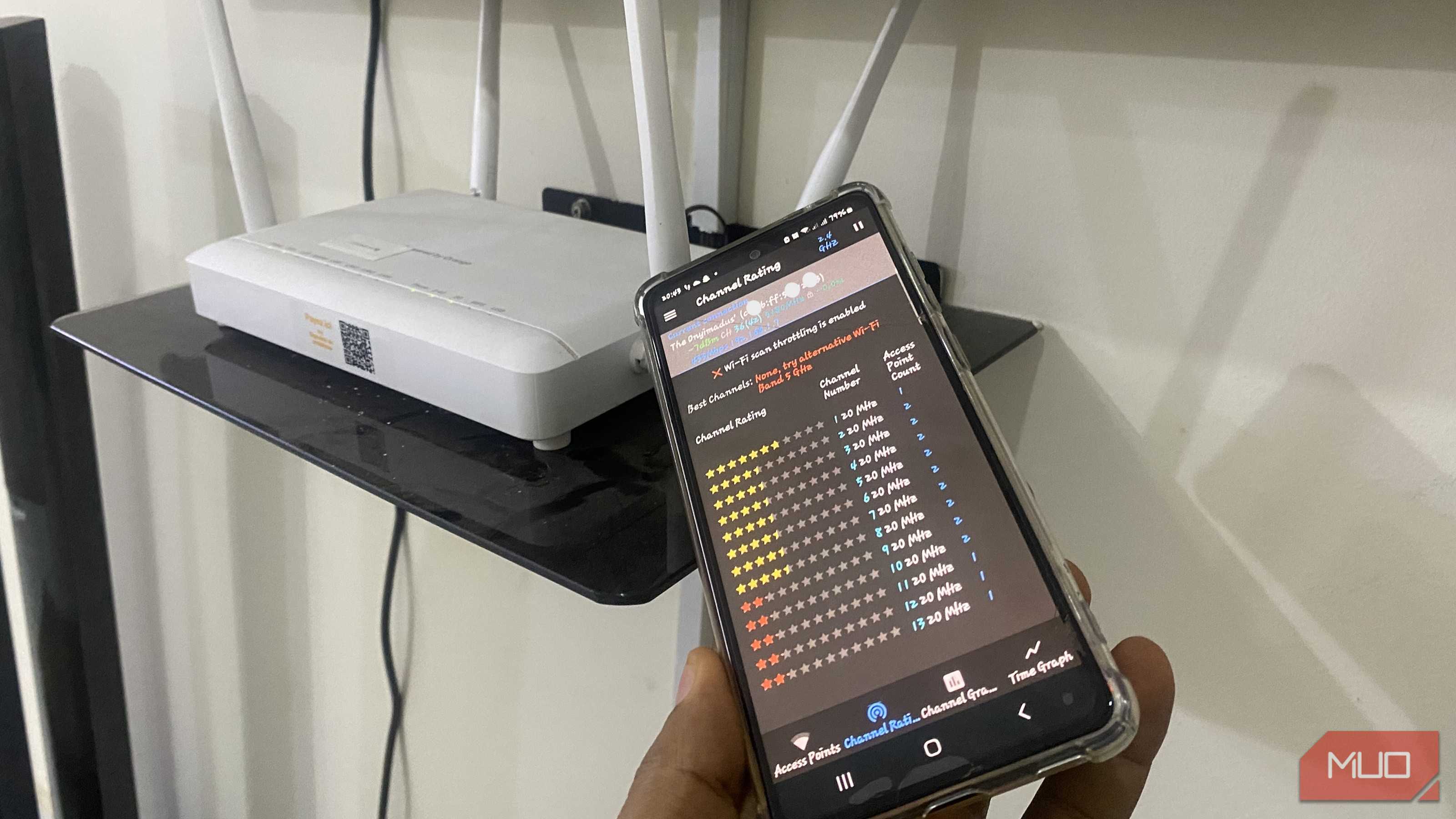
In your router settings, set the Wi-Fi channel selection to manual and choose channels 1, 6, or 11 for the 2.4GHz band. For the 5GHz band, channels 36, 40, 44, or 48 are often good starting points. If you need to see which channels your neighbors are using and want to avoid them, you can use a Wi-Fi analyzer app and run a quick scan.
Set up a DNS
Ditch your ISP’s DNS

DNS is what’s responsible for converting those website names you type in your browser into IP addresses that your device can understand. By default, your router uses the DNS provider provided by your ISP. While there’s nothing wrong with that, ISP-provided DNS servers aren’t always the fastest or the most reliable option.
Switching to a third-party DNS service, like Cloudflare or Google DNS, can make website load a little faster by reducing the time it takes to convert website names into IP addresses. Beyond speeds, these DNS servers often offer better protection against malicious domains and stronger privacy than ISP-run alternatives.
Another major benefit of changing the DNS at the router level is that it applies to every device that connects to the network. That can save you the hassle of changing the DNS settings on your phone, tablet, PC, and TV manually.

ASUS ROG Rapture Wi-Fi Router
- Brand
- ASUS
- Range
- Not Provided
- Wi-Fi Bands
- 5GHz, 2.4 GHz
- Ethernet Ports
- 4x Gigabit LAN, 1x Gigabit WAN
Change the router password
Secure your router before someone else does

Most people never bother to change their router’s default login credentials. That also means anyone who’s connected to the network can easily access the router's settings page using the default credentials printed on the router or listed on the manufacturer’s support website. And once they’re in, they can change the Wi-Fi password, disable security settings, prioritize their own devices, and even lock specific users out.
To be fair, some new routers now ask you to change the default credentials during the setup process. But not all of them do. In any case, it’s always best to change the default login password to something strong.
Update to the latest firmware
New router, old software? Fix that first

A new router might not always be running the latest firmware. If it was sitting in a warehouse or on a store shelf for months before you bought it, there’s a good chance it’s running an old version.
Much like software updates on a phone or PC, router firmware updates can patch security vulnerabilities, improve stability, fix bugs, and sometimes even improve performance. On newer router models, checking for updates and installing them is as easy as clicking a button. But on an older one, you may need to download the update file and install it manually. Either way, it’s not something you should skip.
Changing the default router settings isn't the most exciting thing to do, but it's just as important as choosing the right location for the router. And you only need to do it once, so there's no good reason to skip it.