


Google's Pixel series might just be the second-best thing in the Android ecosystem. I say second best because I've tried switching to Pixels in the past, but I ended up returning to Samsung nonetheless.
It might sound superficial, but it's why I've used nothing but Samsung phones as my daily drivers since the long-gone days of Nokia. It's not the hardware. Most Android makers, including Google, can pack nearly identical components into their phones. The difference is in the software, and Samsung has always had an edge there thanks to One UI. Then there's Good Lock, an official customization layer deep enough to rework how the phone looks and behaves, and it's the kind of thing Google still hasn't given Pixel owners. Once you've used it, every other interface starts to feel a little plain.
What's Good Lock?
Samsung's official customization toolbox

Good Lock is an official customization suite that Samsung builds itself, and it's easy to miss because it doesn't come ready to use out of the box. You install it from the Galaxy Store, which is why a lot of people never find it. Once it's on your phone, it acts like a hub for a long list of smaller tools.
What makes it different from a third-party launcher or icon pack is that Samsung makes it. The changes you make feel native instead of bolted on, and you don't have to worry about it breaking the system or quietly draining your battery.
The app is also modular, so you only download the parts you want. If all you care about is fixing your notifications, you grab one tool and ignore the rest. That keeps it as light or as deep as you decide.
Good Lock modules and the chamber of secrets
The tools that do the real work
Good Lock modules are what make the app special. Each one targets a specific part of One UI and adds controls that Samsung leaves out of the standard Settings menu. There are more than a dozen of them, so here are eight worth starting with.
Home Up
Home Up handles the home screen, app drawer, and recent apps. I use the DIY Home option to resize and overlap widgets so my layout fits the wallpaper, and I switched the Task Changer to a grid so I can see several recent apps at once instead of swiping through cards one by one. If your phone hides a feature you wish you had on the home screen, this is usually where it lives.
LockStar
LockStar lets you customize your lock screen beyond what you can do from the Settings app. You can move the clock, drop in widgets you want to glance at, and change where notifications sit. I use it as a small dashboard, so the things I check most often are there without the need to unlock.
QuickStar
QuickStar customizes the quick panel and the status bar at the top. You can hide icons you never look at, move the clock, and turn on bar levels so the brightness and volume sliders show an exact number instead of a guess.
MultiStar
MultiStar is the multitasking module. Turn on Multi window for all apps, and you can force split screen even on apps that normally refuse to share. Pair it with the quick launch option, and a long press on the Recents button drops you straight into split view, which saves several taps when you want a browser and your notes side by side.
NotiStar
NotiStar keeps a full, searchable history of your notifications. Android clears alerts once you swipe them away, but NotiStar holds on to them. So when you dismiss something by accident, you can scroll back and find it instead of guessing what it said.
Sound Assistant
Sound Assistant gives you per-app volume through its Individual app volumes setting. You can pin a loud game to a low level while music or a podcast stays where you like it, and you can shrink the volume step so each press of the rocker moves the level a little instead of a lot.
One Hand Operation+
One Hand Operation+ adds gesture controls along the edges of the screen. You set short and long swipes on the left and right sides to launch apps, go back, turn off the screen, or control playback. On a tall phone, it's far more comfortable than reaching for a button you can't quite touch.
Keys Cafe
Keys Cafe is for the Samsung Keyboard. You can build your own layout, add an extra emoji row, and map two-finger gestures to actions like copy all, paste, and jumping the cursor to the start or end of a line. That last set turns the keyboard into a rough text editor and cuts out a lot of tap-and-hold fiddling.
Good Lock can enhance device functionality
More than a fresh coat of paint
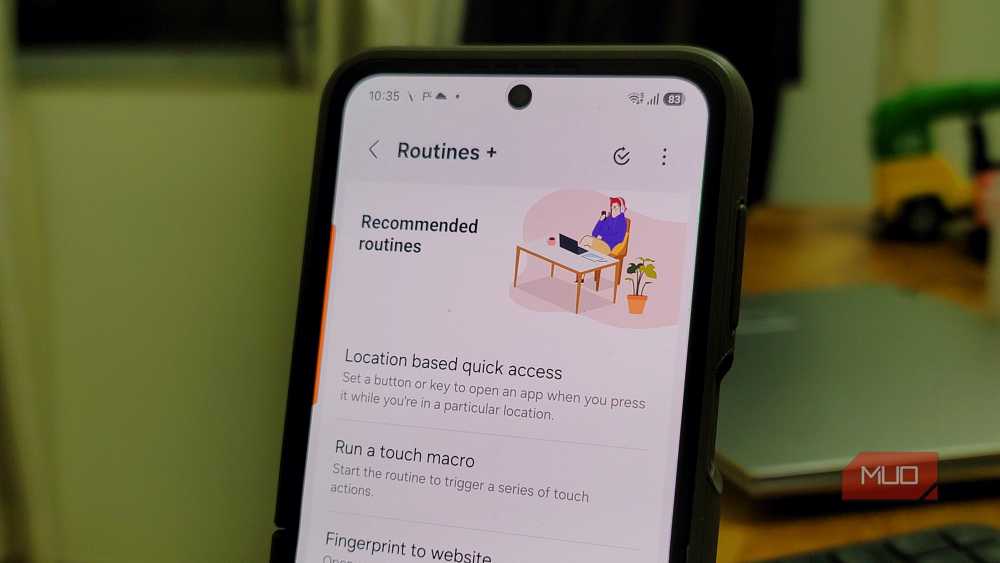
Beyond the customization, Good Lock can also enhance the functionality of a Samsung phone. So, it has a use case even for someone who prefers the default look of the One UI.
With Display Assistant, you can set a different screen timeout per app, so a recipe or a long article stays awake longer while everything else times out normally. Then, Nice Shot adds a selfie overlay to screen recordings, which is useful when you are recording a quick how-to, and your face and reactions show up next to the action. Finally, Routines+ expands Samsung's built-in automation with triggers and conditions that the stock version doesn't offer.
Good Lock
- OS
- Android
- Developer
- Good Lock Labs
Good Lock is a powerful customization suite for Samsung Galaxy devices, offering a collection of modules and plugins that let you personalize almost every aspect of your phone. With Good Lock, you can tweak the lock screen, home screen, navigation bar, keyboard, notifications, and more to match your style and workflow.
The part Google still hasn't matched
Google's phones are great on their own, with some cool tricks you can only pull off on a Pixel phone and a camera that you can brag about. But it's hard to beat Samsung once you've lived with the kind of customization that isn't a gimmick.
The irony is that Samsung built its early Galaxy phones on gimmicks, hyping software tricks that weren't really used in daily life. Over the years, however, it dropped most of that and kept improving the practical stuff instead. Good Lock is certainly where that work ended up, and it's the one thing Google still hasn't built into a Pixel.