


Every time I set up a new Android phone, or hand one down to my daughter, or borrow a rental car with someone else’s phone mounted on the dash, I run through the same short list of Google Maps settings before I pull out of the driveway. None of them takes more than a few taps, and none of them show up unless you go looking.
Google Maps is fine out of the box and offers an incredible list of features you're probably not using. But there are a few things that annoy me about the defaults — glare washing out the screen, turns I almost miss, dead zones that kill the directions right when I need them, and that habit it has of guessing where I'm headed based on my calendar or whatever I searched last week. Fix those, and the app stops getting in your way.
Most of this I learned the hard way — missed a turn here, lost signal there, usually at the worst possible time. Now it's just habit. Anything more than a quick five-minute drive somewhere familiar, and I'm running through these five settings first.
Google Maps settings to change before your trip
Download an offline map of where I’m driving


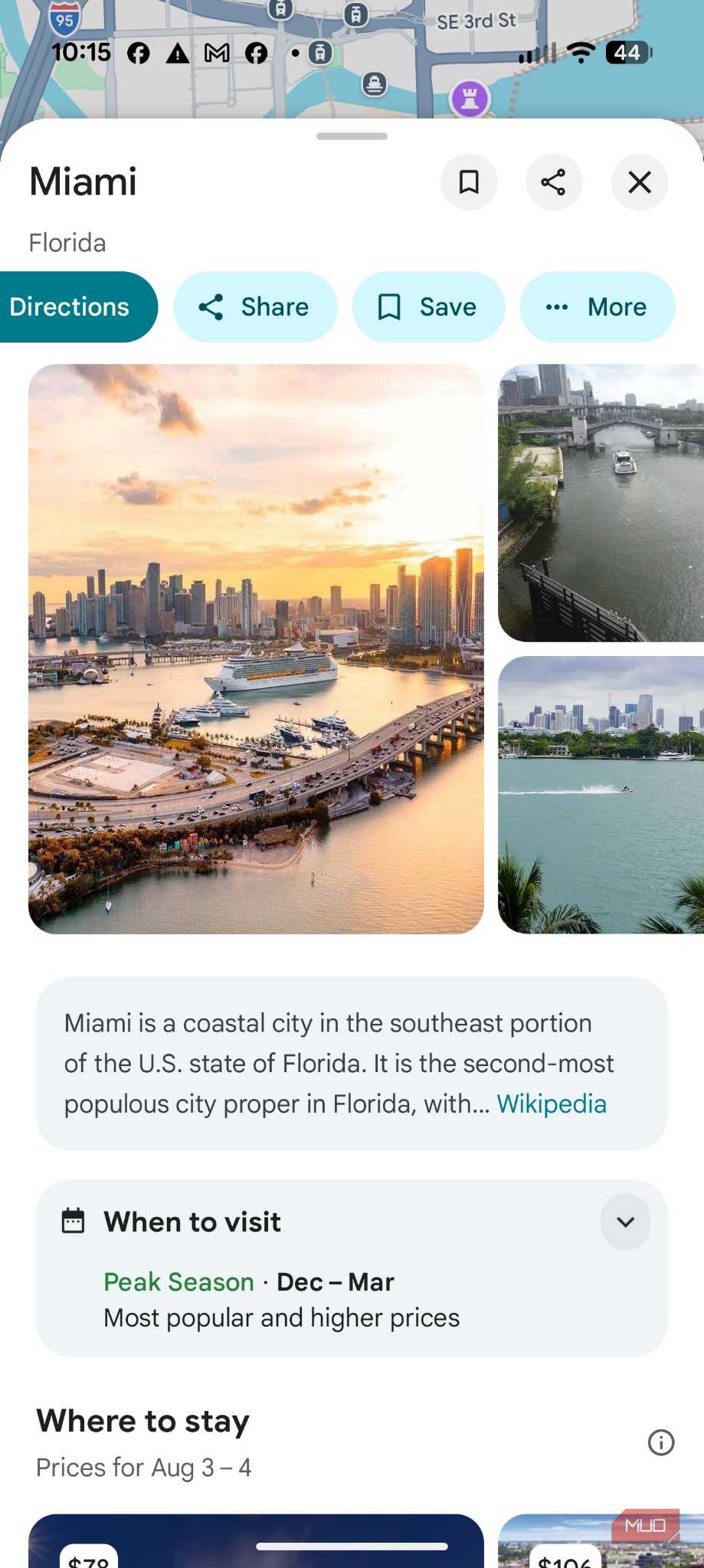
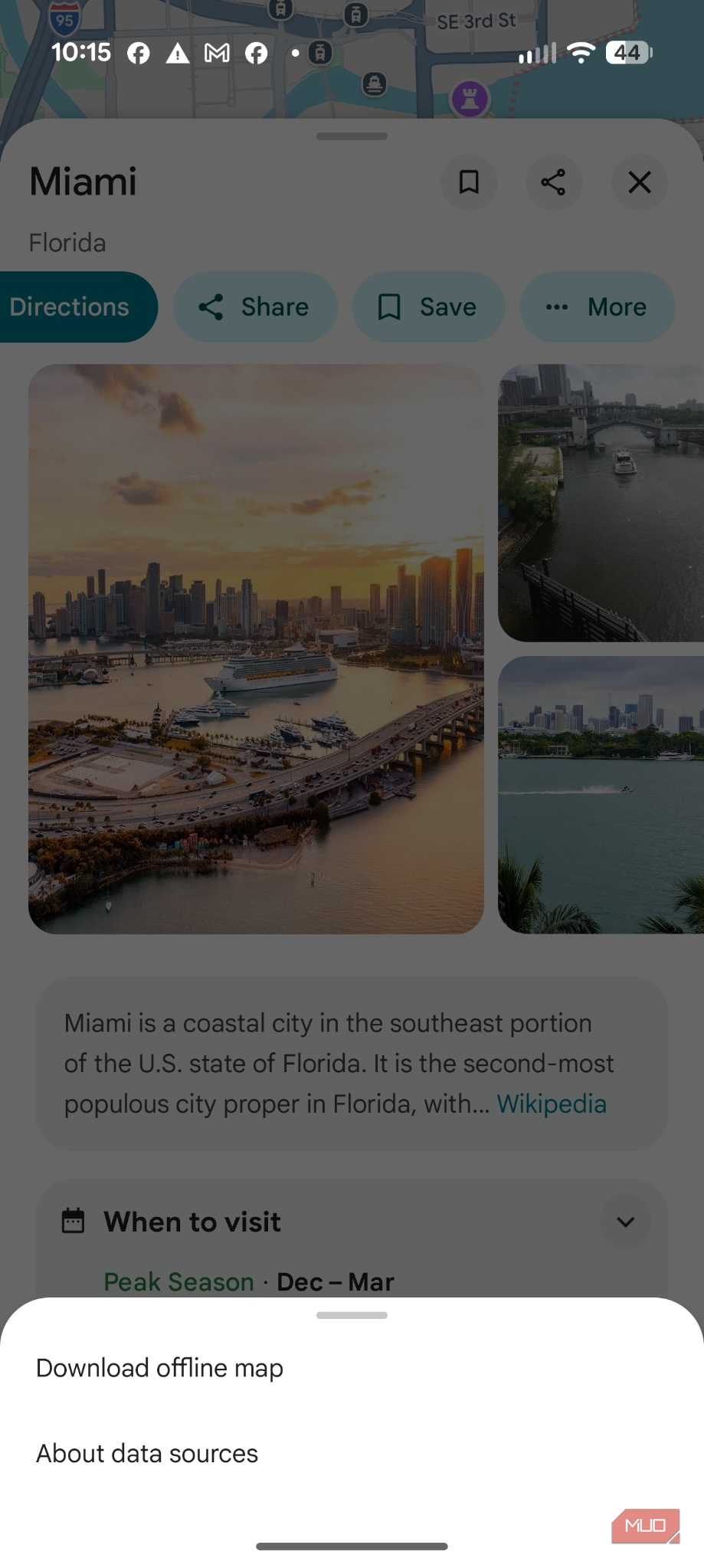
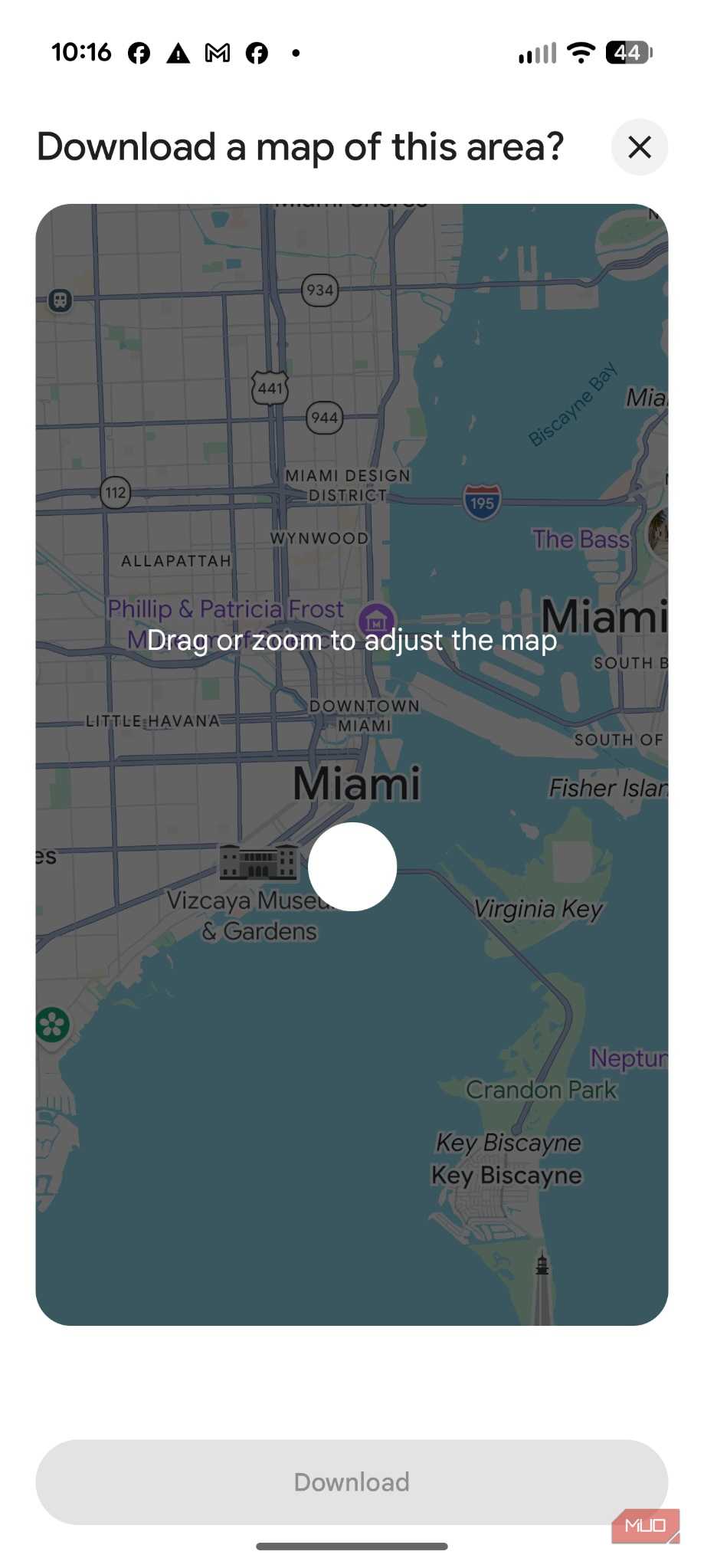
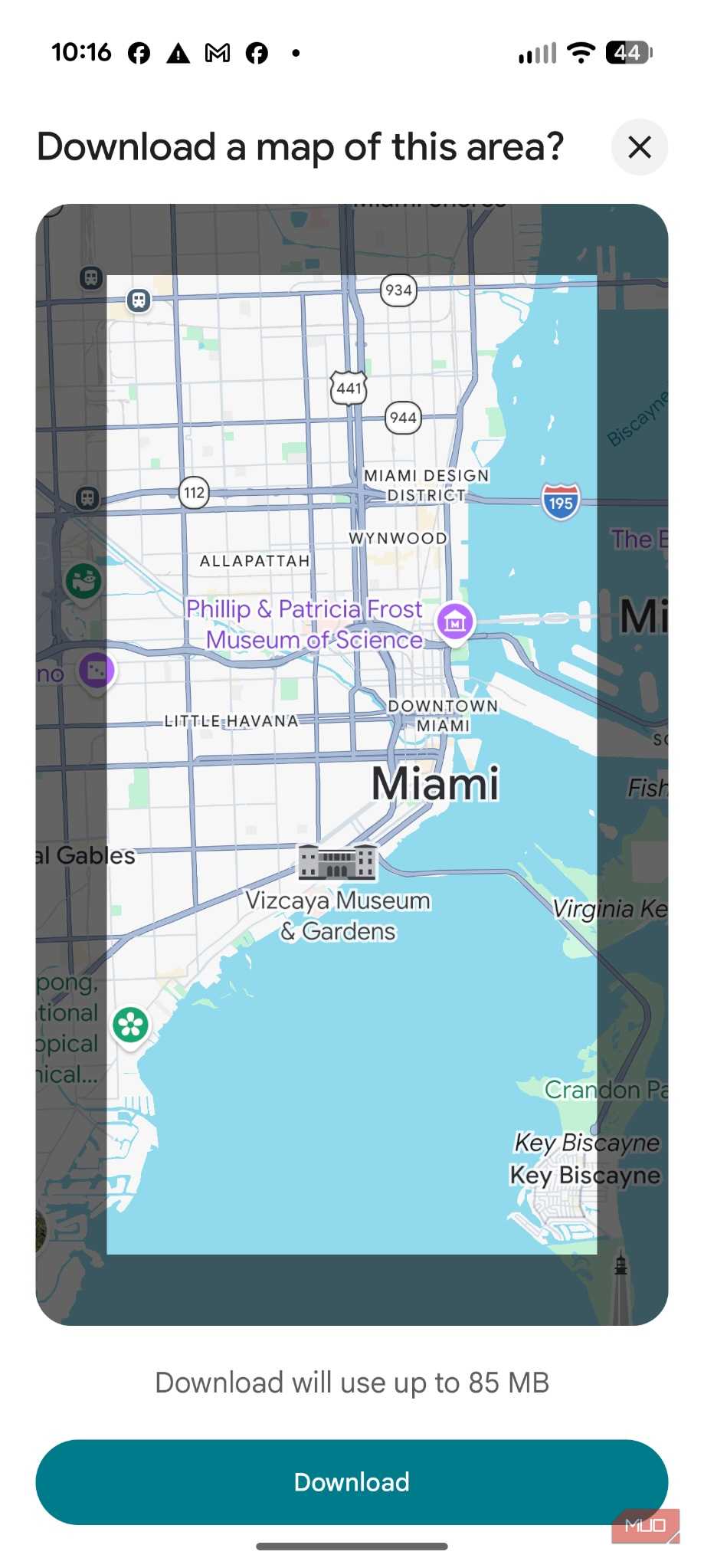
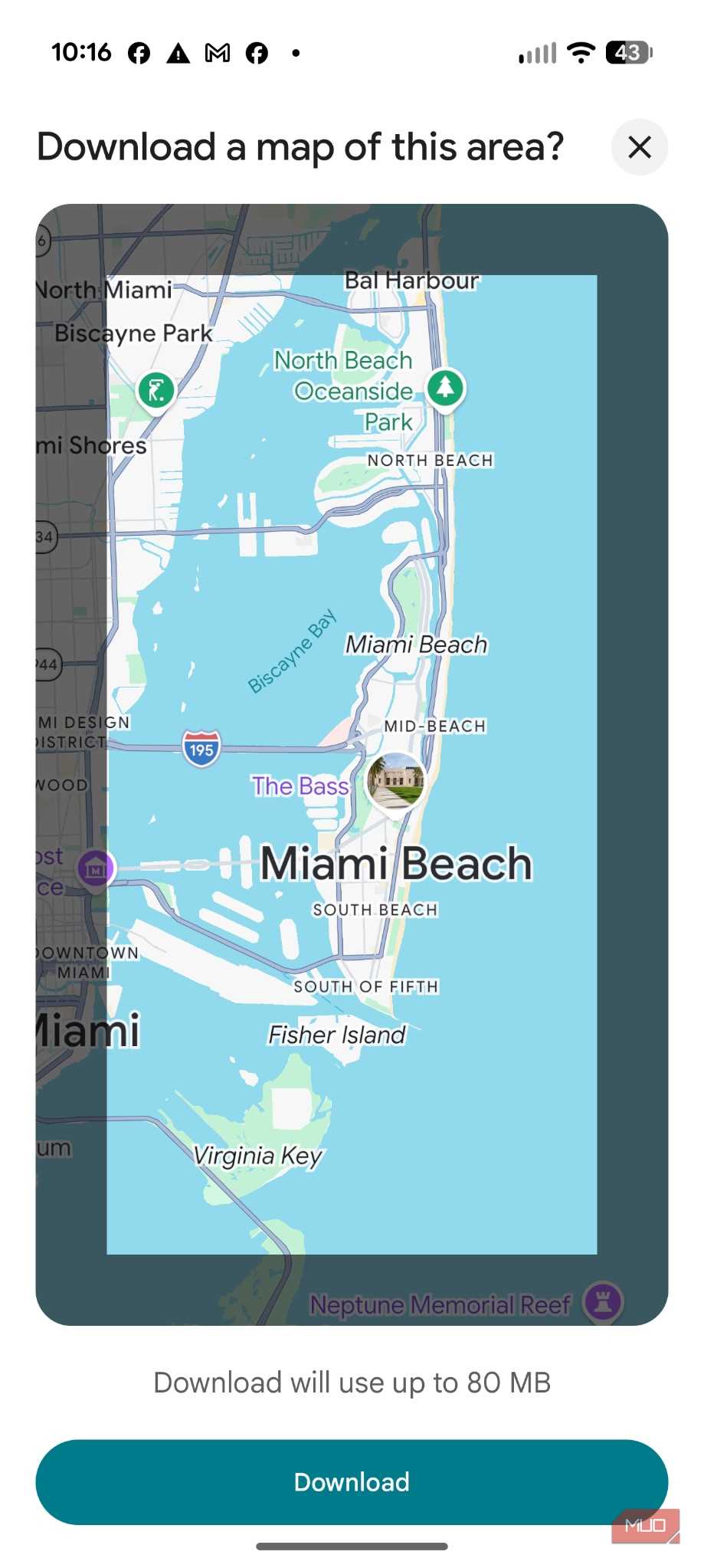


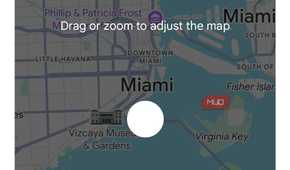
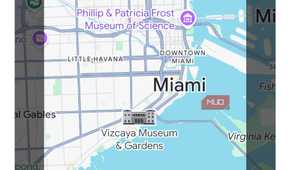
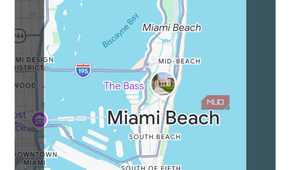
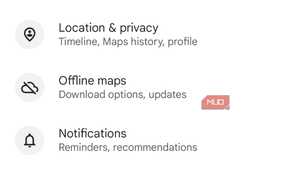
Cell coverage is better than it used to be, but reliable service is never a guarantee. Rural stretches, mountain passes, and state parks are still plagued by dead zones that can disrupt your navigation. So whenever I’m traveling away from my location, I make it a habit to download an offline map of the region I’m going to. This quick step takes only a few minutes over Wi-Fi, but it guarantees uninterrupted, turn-by-turn directions even through 20 miles of no service. Think of offline maps as software insurance — something it’s always better to have and not need.
Set route options to match how I actually want to drive
Under route options, Maps lets you individually avoid tolls, highways, and ferries. I adjust these based on the specific trip rather than sticking to a single blanket default. For example, driving somewhere new in a rental, I’ll choose to avoid tolls so I don’t have to guess how an unfamiliar toll system handles payment, since some regions bill rental car companies directly and pass along processing fees that cost far more than the toll itself. Driving somewhere I know well, I’ll let tolls back in if they save real time, and I already know the payment setup.
So this isn’t a toggle you flip once and ignore. It’s a habit of checking before any drive that’s different from my usual routine, since the wrong route preference can easily send you fifteen minutes out of your way. It’s also worth a glance at the “prefer fewer highways” option if you’re driving a car you’re less comfortable pushing to highway speeds, whether that’s a rental, a loaner, or something with a trailer attached.
Navigation settings that reduce driving stress
Turn on driving mode details: speedometer and speed limit


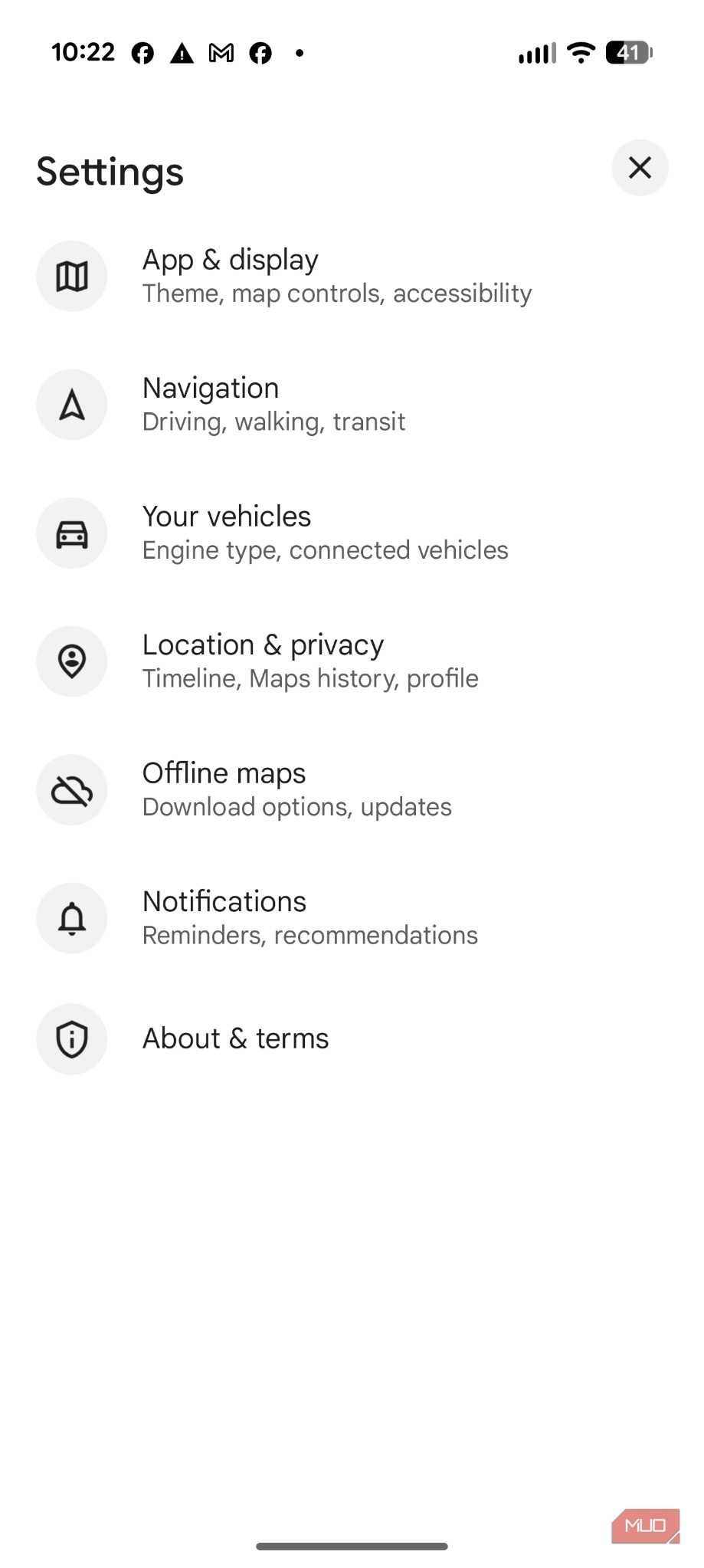
Under Navigation, there's a toggle that puts your current speed right next to the posted limit on the map. I always flip it on. Speed limits drop without warning — construction zones, town lines, whatever — and having both numbers sitting there means you catch the change before your eyes even find the sign. It's a tiny overlay, but it's saved me from a ticket more than once, usually rolling into a school zone I didn't see coming.
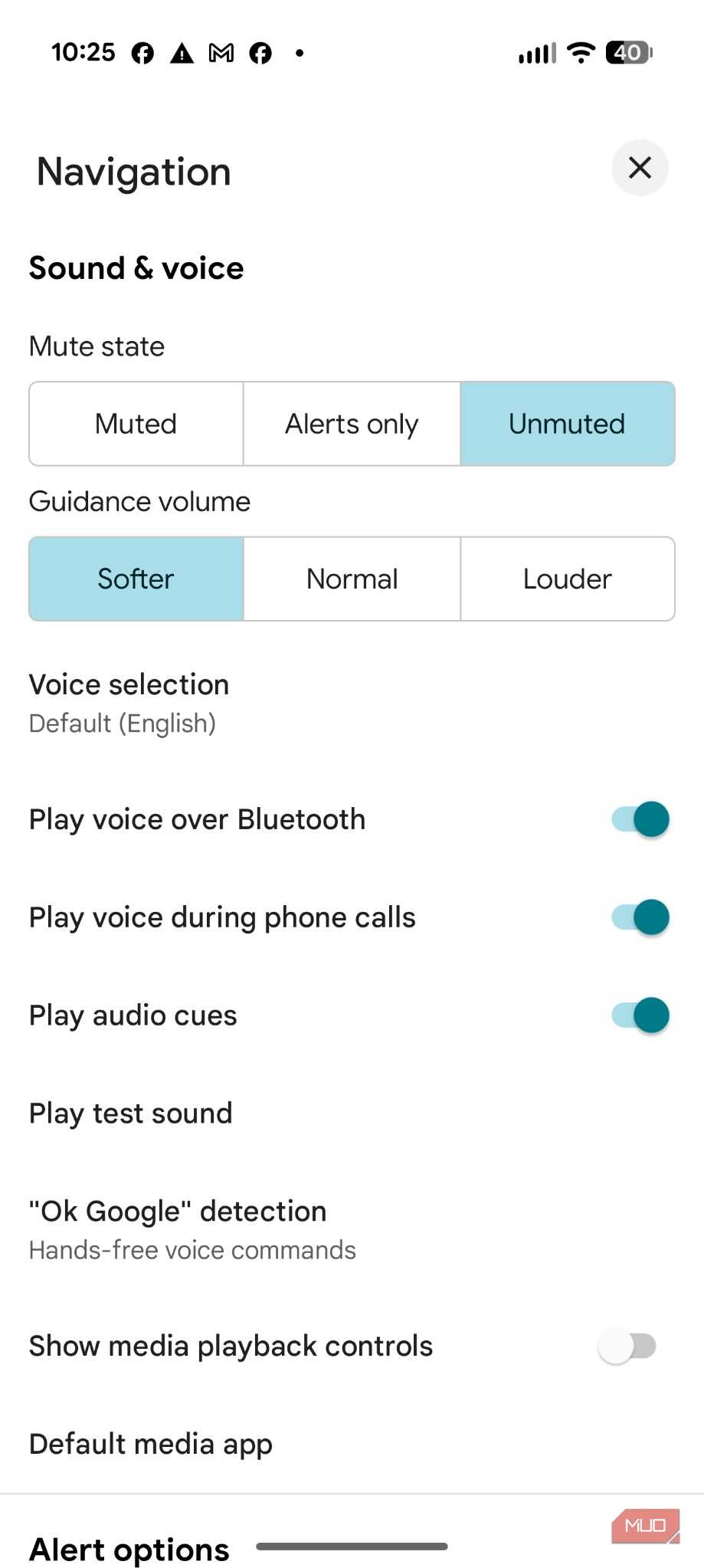
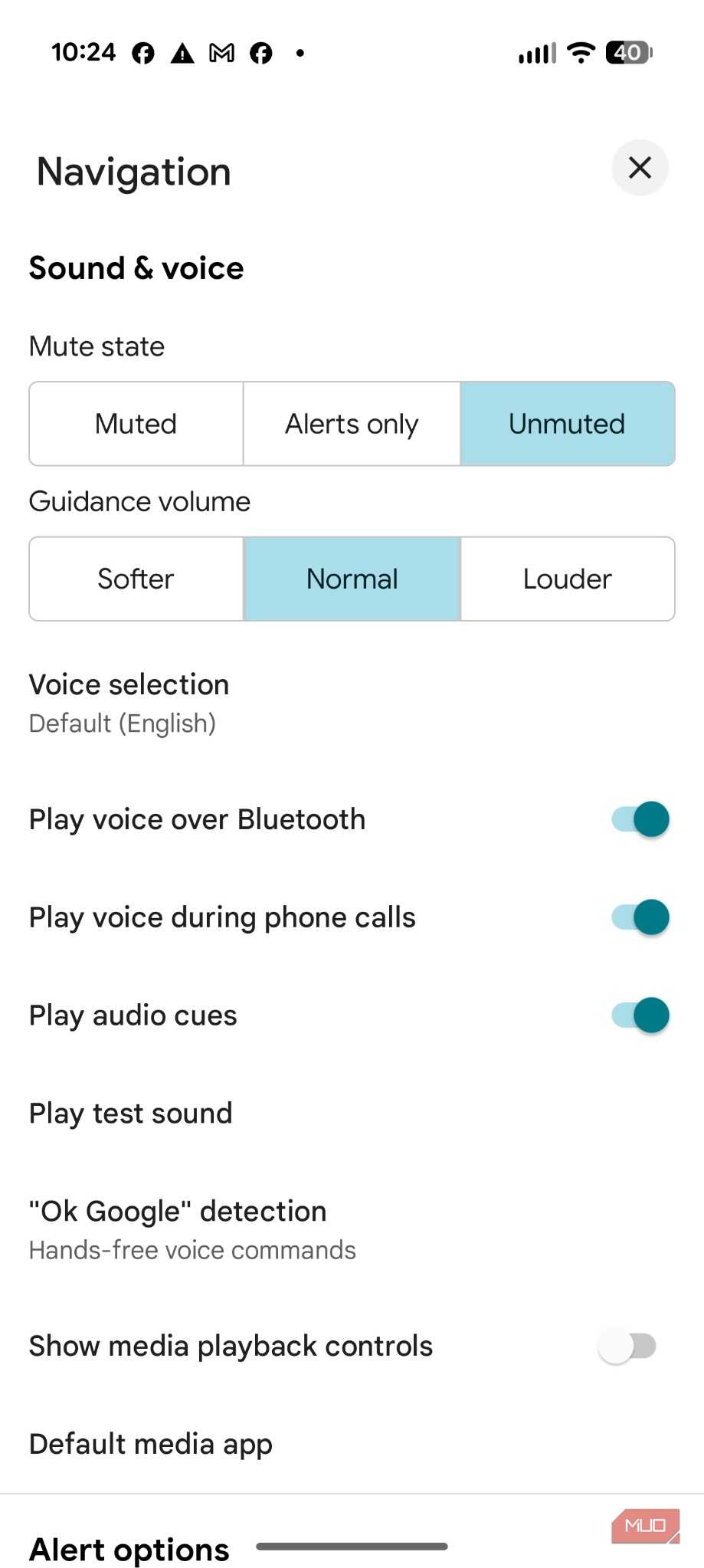
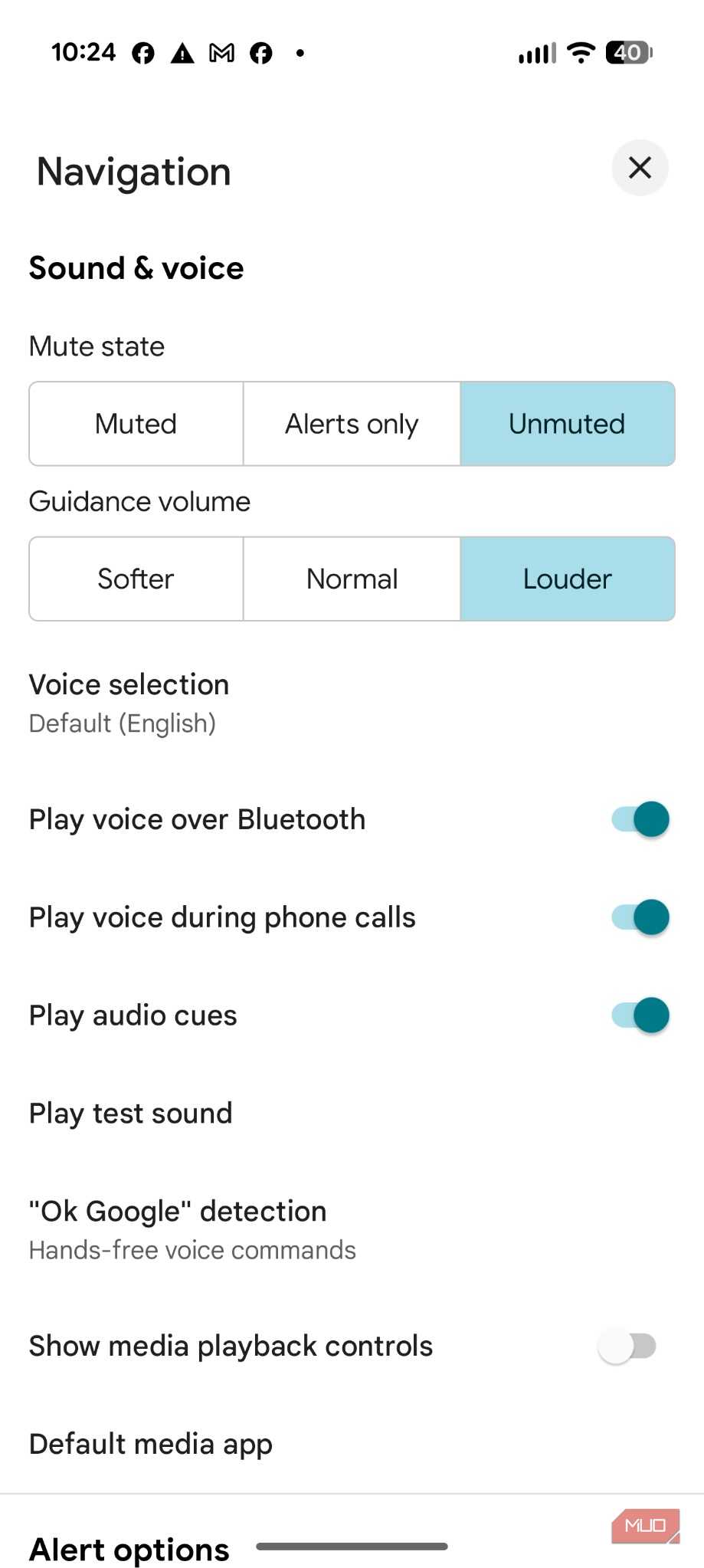
Set voice guidance volume to Louder, not Normal
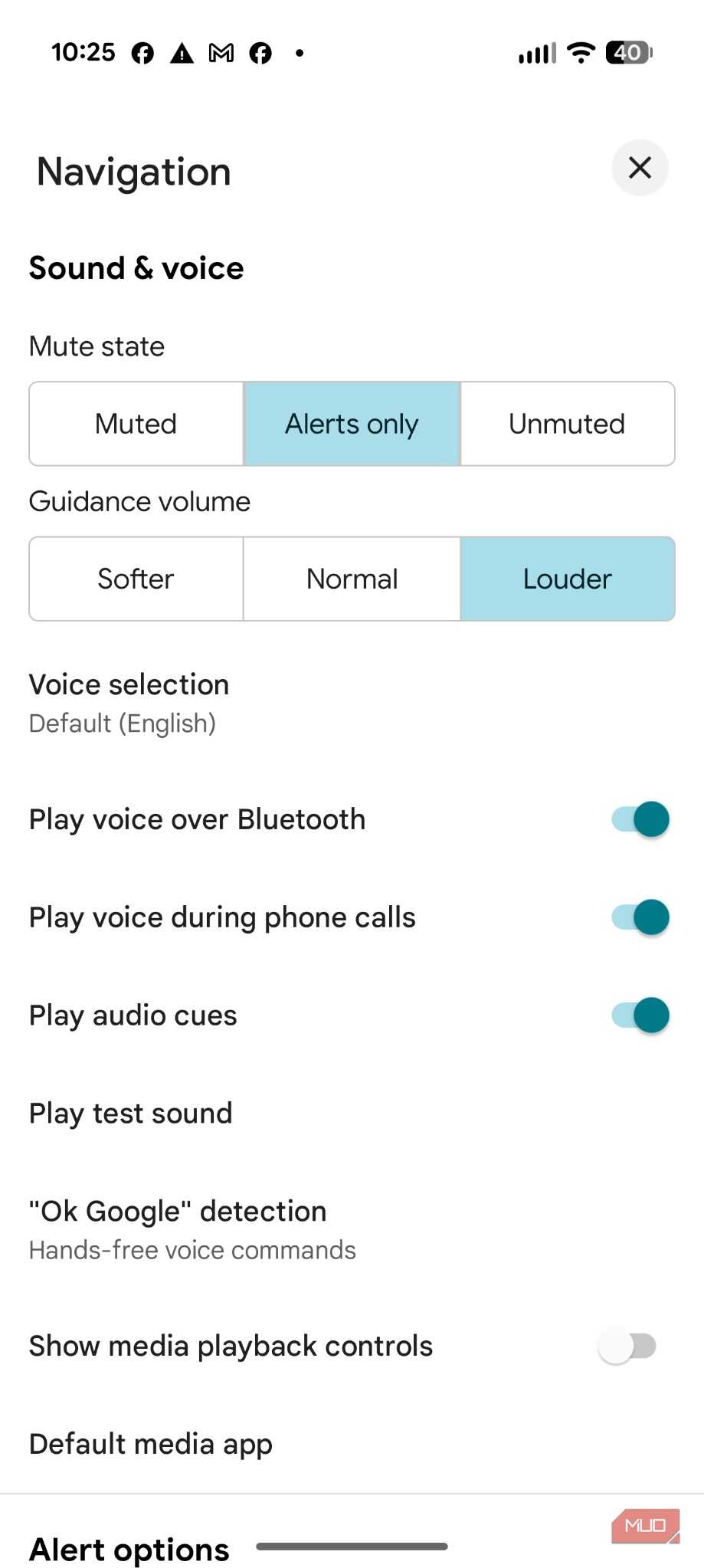
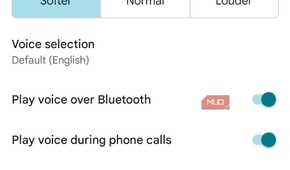
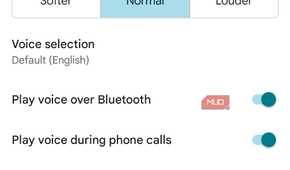
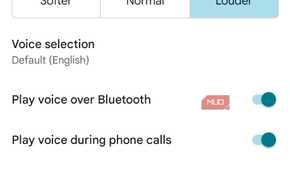
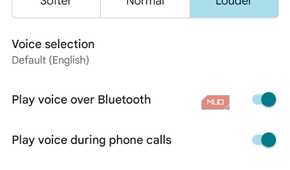
Google Maps defaults its audio volume to Normal, which lowers the announcement volume when your phone detects the car is quiet. But what actually happens is the app second-guesses itself the moment the music comes on, a window cracks, or the air conditioning kicks up a notch, and the one instruction you actually needed gets drowned out by road noise. I switch this to Louder every time, under Navigation settings, so the volume stays consistent no matter what else is happening in the car. Missing a turn because a voice prompt got quiet at the wrong moment is an easy problem to avoid.
Google Maps privacy settings: Timeline and location history
Turn off or trim Timeline and location history


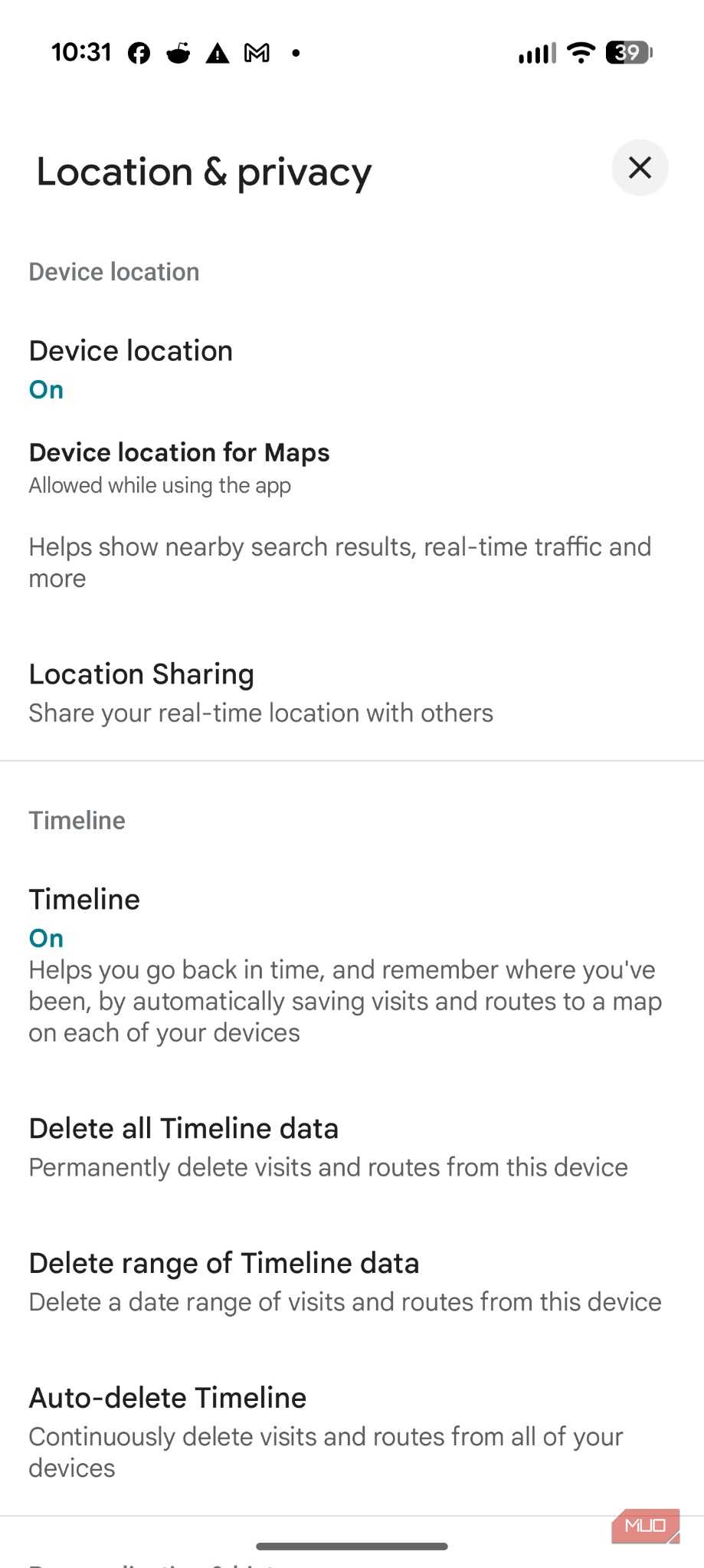
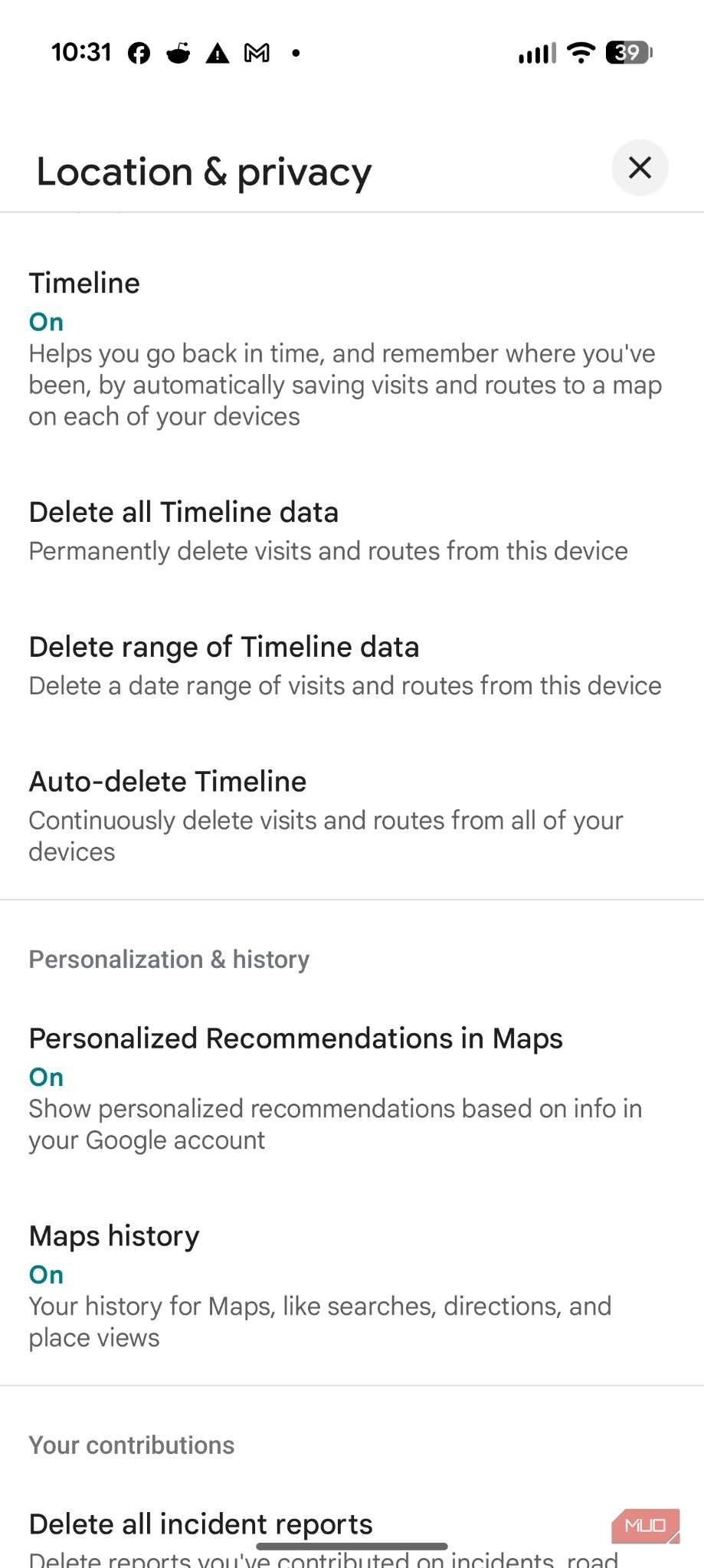
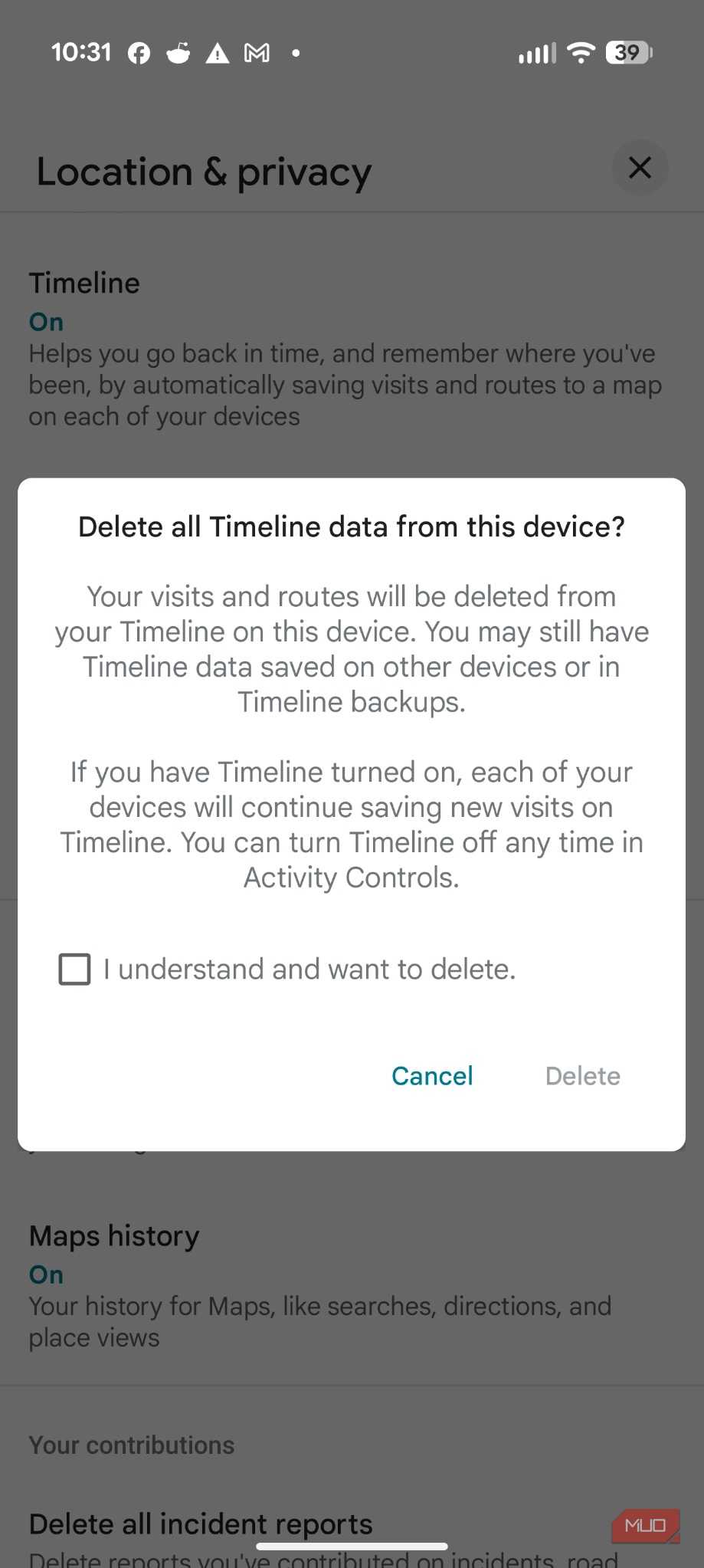
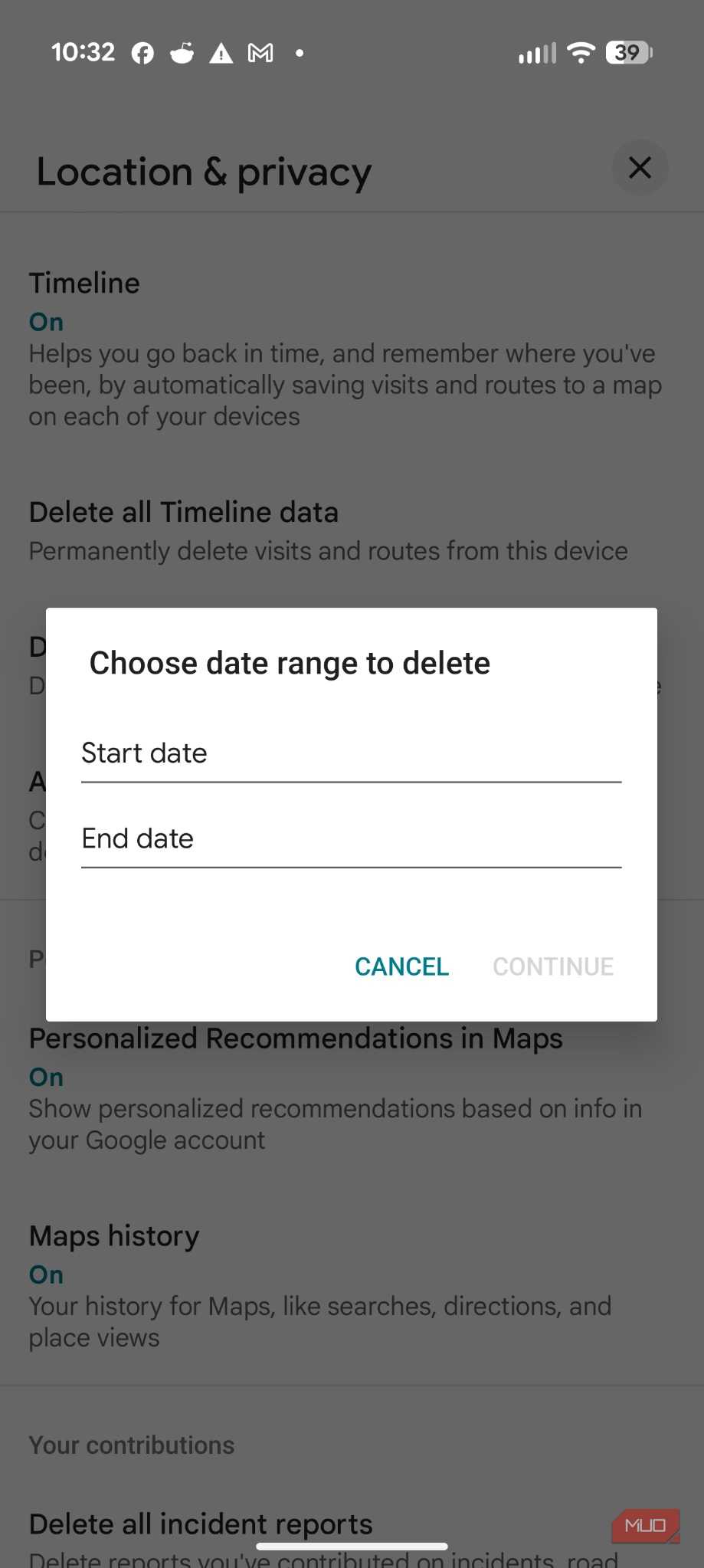
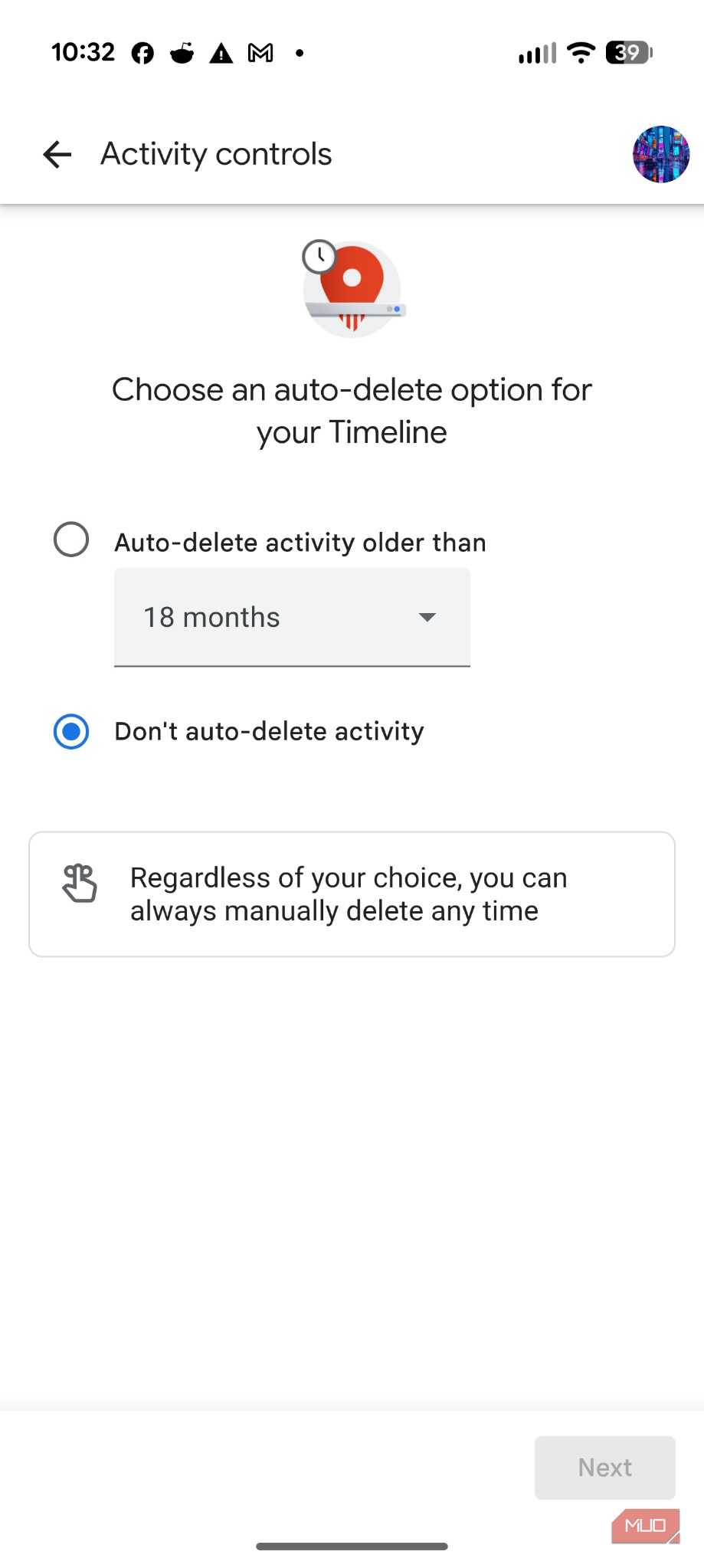
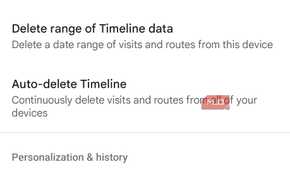
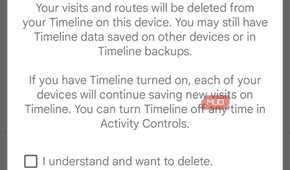
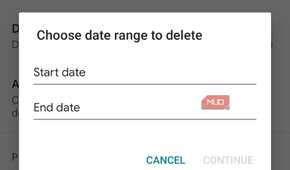
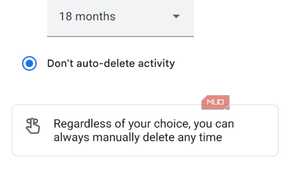
Location history, now folded into Google’s Timeline feature, quietly builds a record of everywhere your phone has been. This is something you want to choose actively, not just leave to Google’s default preferences. So on a phone I’m handing down or setting up fresh, I go into the Google account’s location settings and either turn Timeline off entirely or set it to auto-delete after a short window, depending on whether the person driving actually wants that history kept.
This tracking doesn’t affect your navigation accuracy at all. Turning it off is just about stopping a permanent log from running in the background. That matters most on shared or hand-me-down devices, where the current driver isn’t necessarily the person who originally set up the phone, and an old location history is easy to forget about entirely. Getting this right before the first drive means it’s set properly from day one, saving you from having to clean up a digital paper trail later.
Why these settings are worth the 60 seconds
Running through these settings takes less time than finding a parking spot at most destinations, yet it can completely change the driving experience, eliminating those tiny, nagging friction points that add up over a long trip. The app is good enough by default that most people never bother adjusting it, and for a lot of short, familiar drives, that’s genuinely fine.
It’s the unfamiliar trips, the rental car in a new city, the road trip through three states with patchy coverage, or the phone you just handed to your kid, where these small changes stop being optional. A few taps before the first drive make the difference between fighting Google Maps the whole way there and just using it. That’s the point of the tune-up.