


Our Wi-Fi is normally great. But then the problems began. At first, I thought it was just a one-off; maybe the weather was to blame, or a router restart was overdue. Things only got worse.
The symptoms will sound familiar. Netflix buffered, dropping from glorious 4K to the kind of pixelated 720p that I haven't seen in, well, a long time. Online games were almost unplayable, and a glance at my ping confirmed the issue.
Our Internet Service Provider (ISP) was the next to take the blame. But a check of the modem showed everything was online, as it should be. The issue was inside the house, so I fired up a Wi-Fi analyzer in case it could throw any light on things. And I'm very glad that I did.
An invisible traffic jam of data
Sharing is not always caring

Before we dive into what the problem was, let's first have a refresher on how Wi-Fi actually works. Wireless networks transmit data on specific radio frequencies, generally either the 2.4GHz or 5GHz bands. Newer Wi-Fi routers also use the 6GHz band.
Each of these bands is made up of channels. You can think of them as lanes on a highway. The band is the highway itself, and each lane is a channel on that band. And like highway lanes, channels can become congested, reducing the speed at which cars (or data) can move down them.
Most modern routers let you choose which channel to use, but they're usually best left to their own devices. When using the "Auto" setting, routers scan our environment and then choose the least congested channel. But it normally does this when it's powered on. And if you don't restart your router very often, there's no guarantee that it's still using the best channel for your needs.
It's with this knowledge safely in hand that I downloaded a Wi-Fi analyzer and set it to scan my local area.
Testing the airwaves
It's time to change the channel
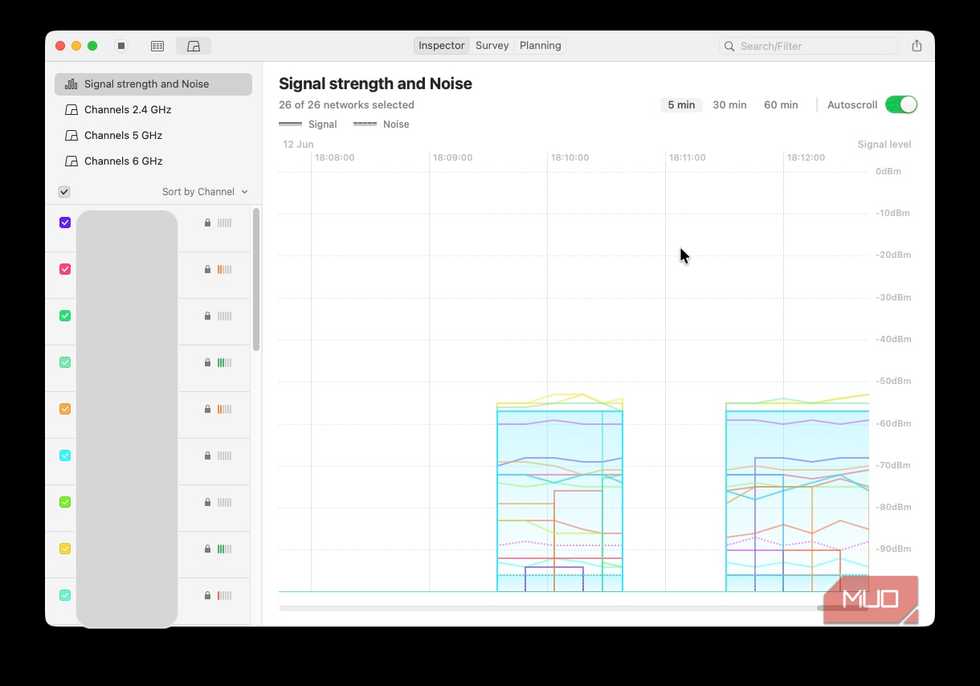
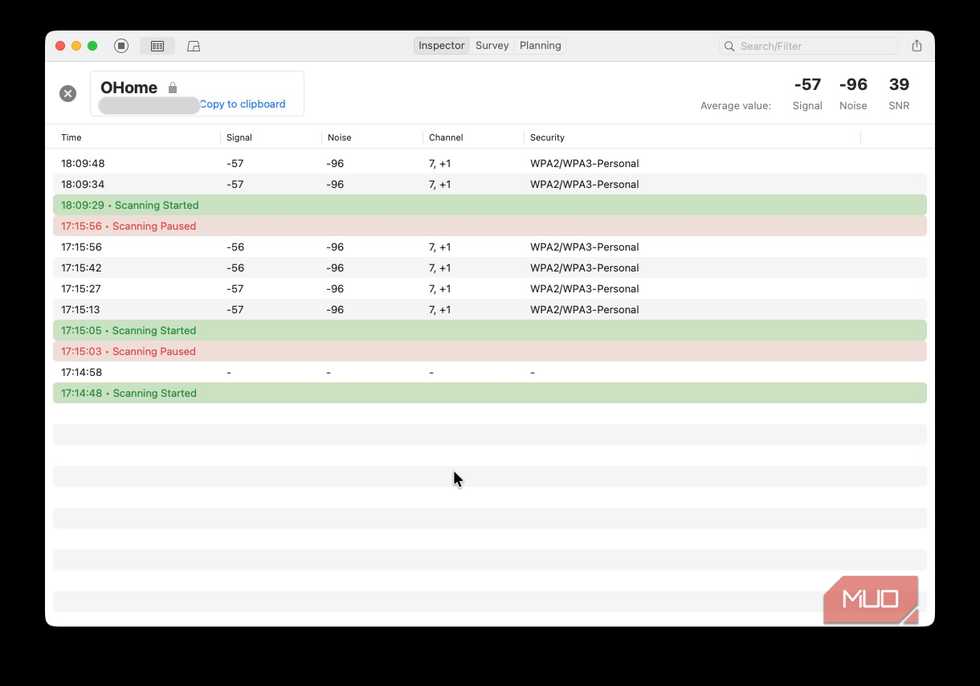
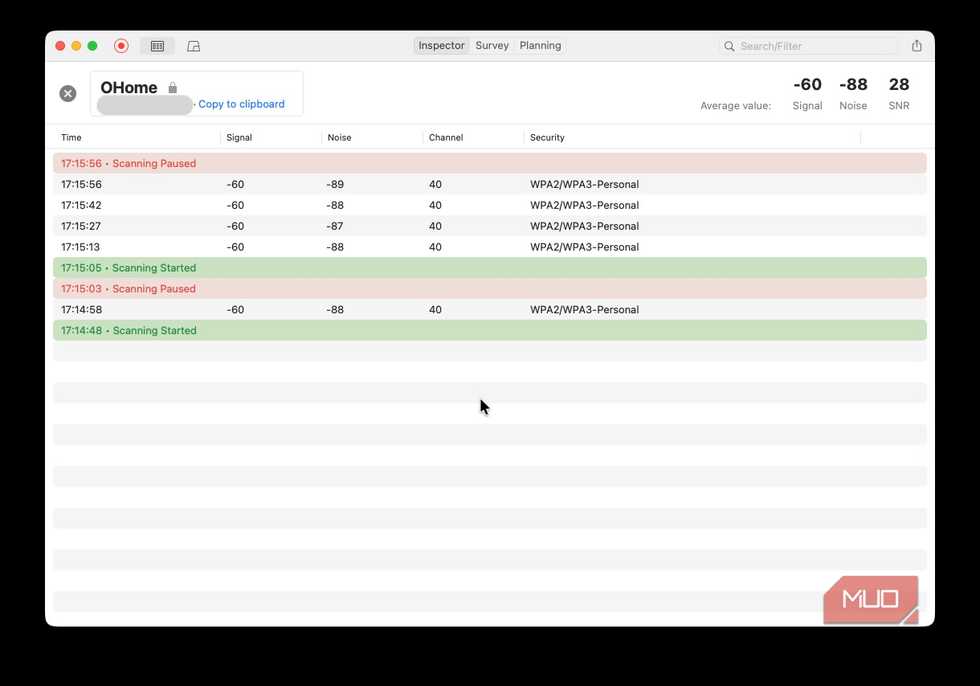
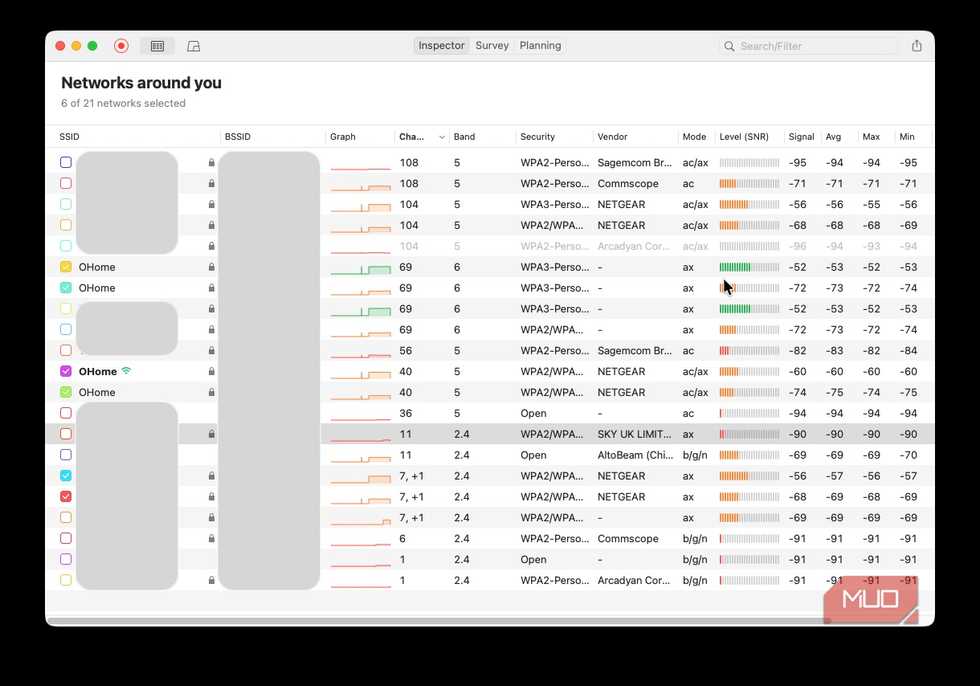


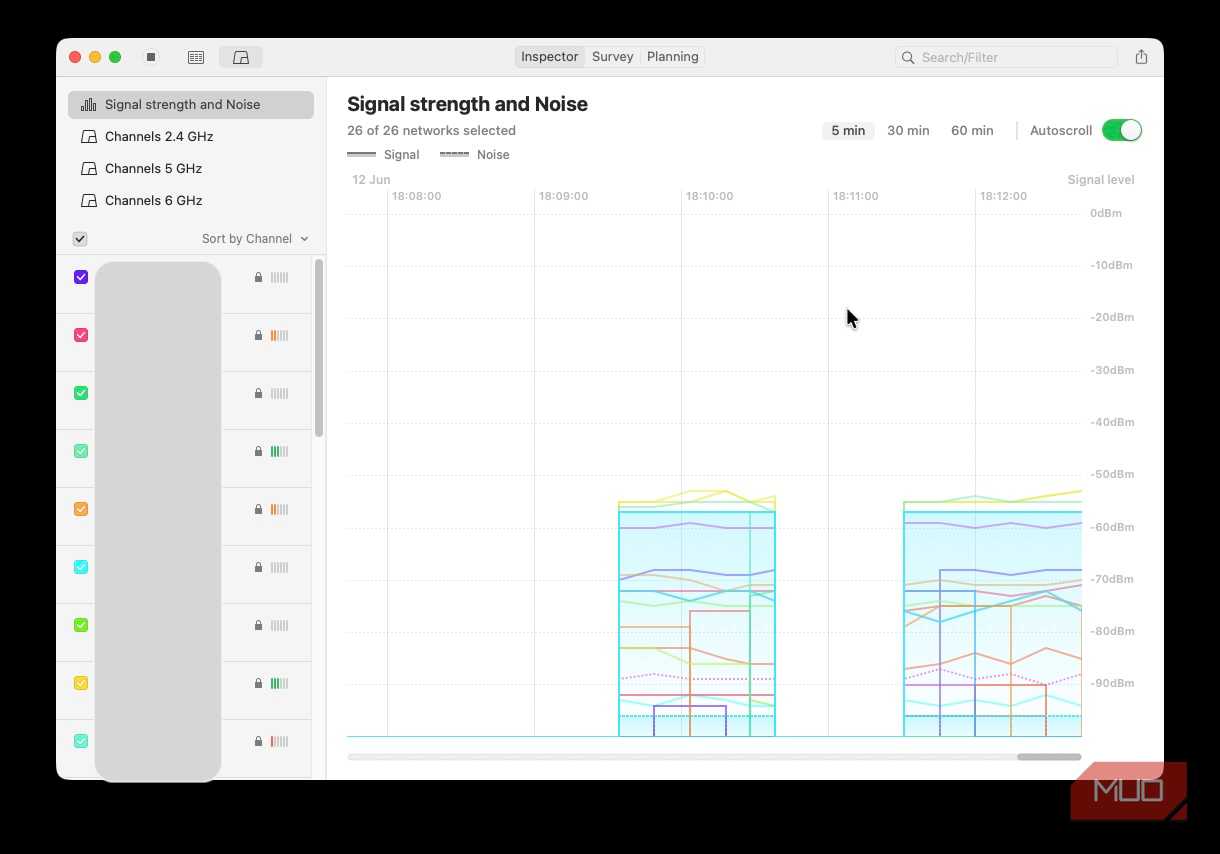
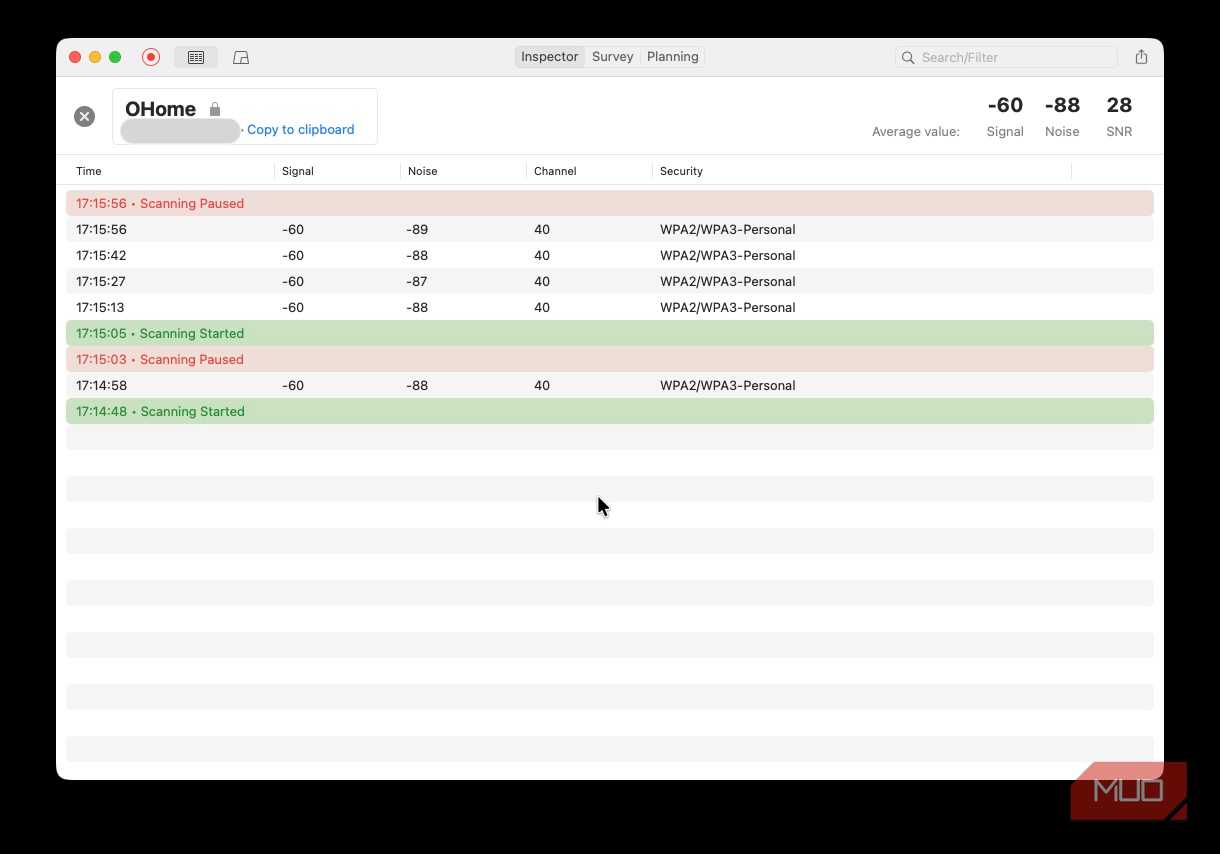
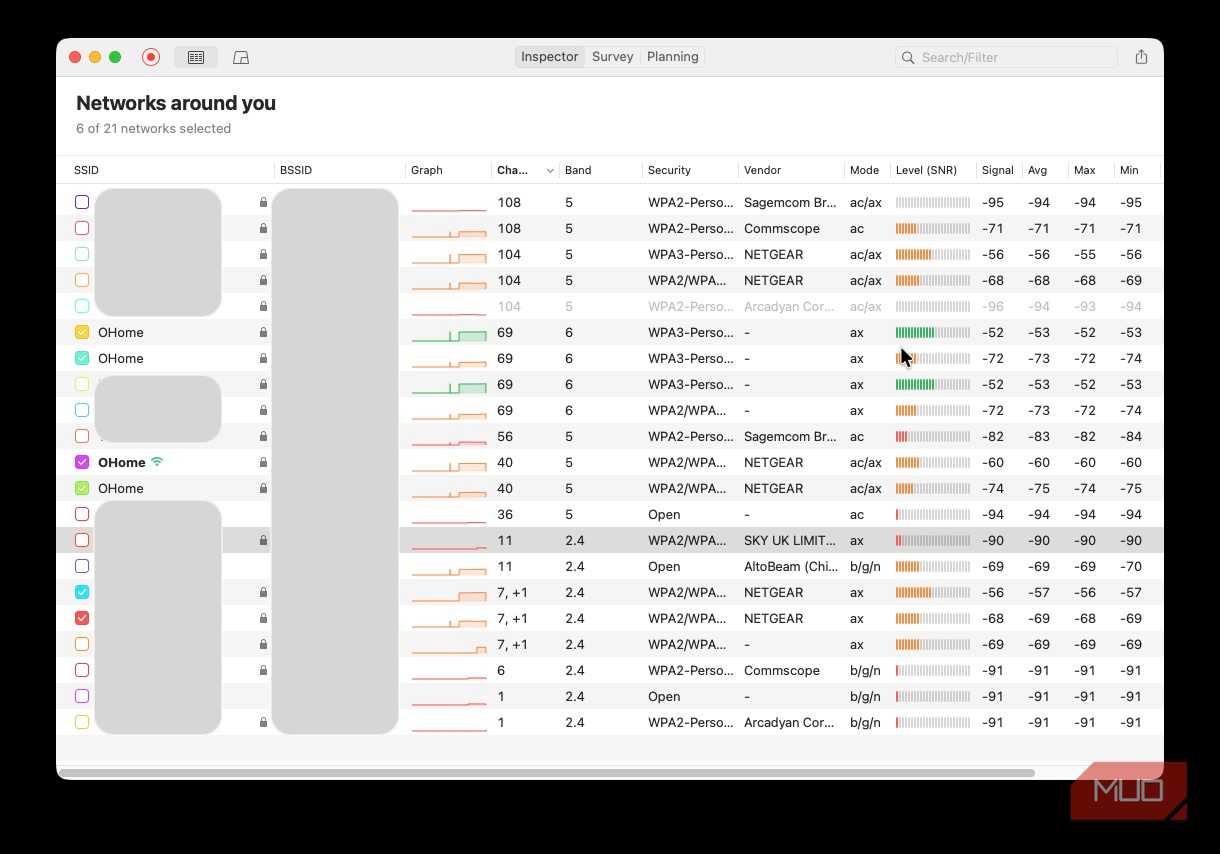
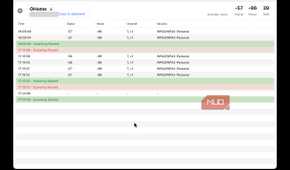
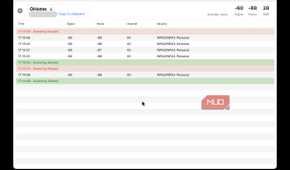
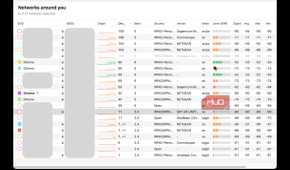
A quick check of the analyzer's results made it pretty clear that something wasn't right. For reasons unknown, my router wasn't just using a congested channel on both its 2.4GHz and 5GHz bands. Every router in my area seemed to want to pile into the same channels as well.
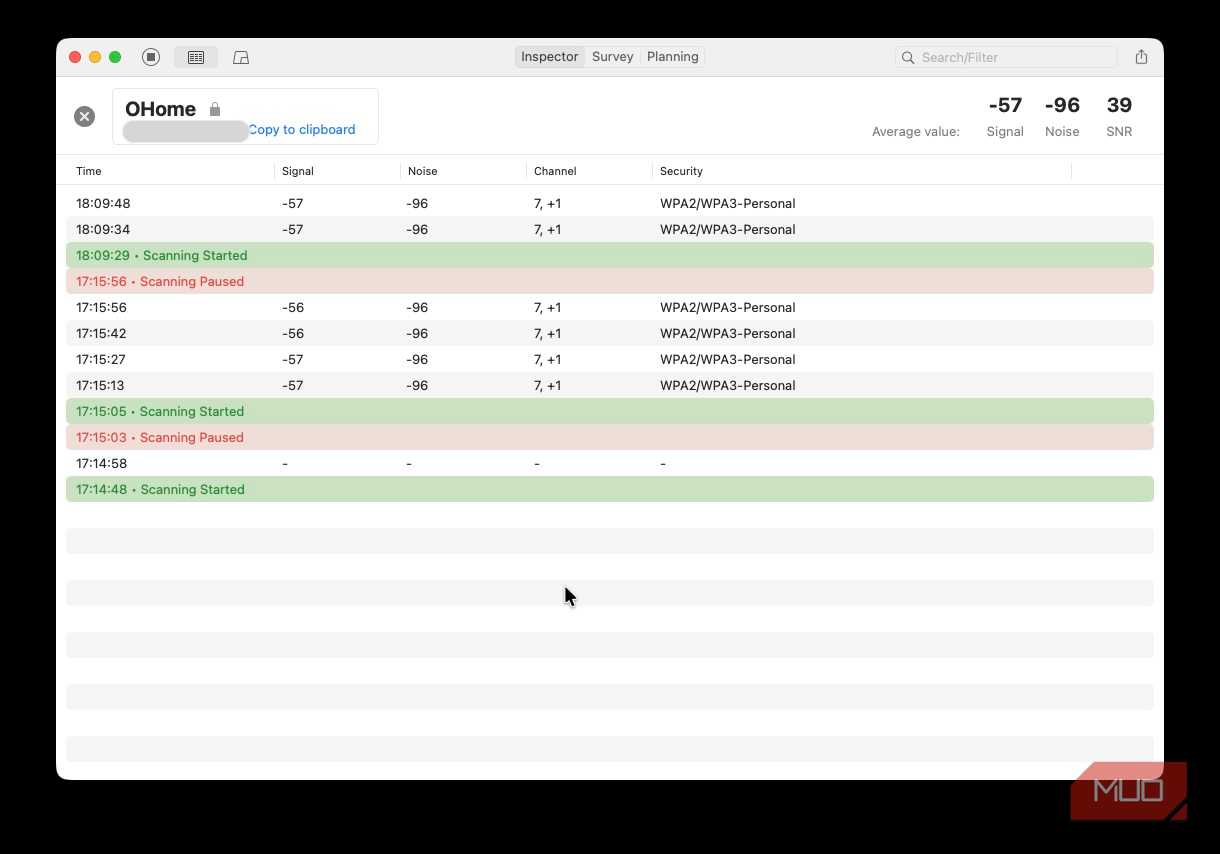
Things were particularly bad on the 2.4GHz band. That band has only three non-overlapping channels (1, 6, and 11), and with every router in the land seemingly hooked on channel 6, it's no wonder our Wi-Fi was misbehaving. This was backed up by what was a respectable signal strength paired with a horrific signal-to-noise ratio (SNR) reading. There was simply too much noise for any one router to punch through.
Thankfully, the Wi-Fi analyzer also pointed me in the right direction. Channel 11 was wide open and ready to go. I headed to my Wi-Fi configuration page and, a minute or two later, its 2.4GHz band was living the good life.
A check of the 5GHz band found that things weren't much better there. There are more channels on the much wider 5GHz band than there are on the 2.4GHz band. But my Wi-Fi was still uncomfortably close to my neighbors, so I changed it.

ASUS ROG Rapture GT-AXE11000
- Brand
- ASUS
- Range
- 4,500 sq. ft.
- Wi-Fi Bands
- Tri-Band
- Ethernet Ports
- 4x Gigabit LAN, 1x 2.5G WAN/LAN, 1x Gigabit WAN
Clearing the line
The magic fix

Once I'd changed the channels of both the 2.4GHz and 5GHz bands on my router, it was time to test. But Wi-Fi issues can be sporadic and intermittent, so it takes time to be sure you've fixed them.
After a week or two of pixel-peeping at my Netflix streams and neither of my kids complaining about network issues, I took it as a win. I'll probably need to go through this rigmarole again at some point. Maybe just restarting the router would have the same effect. But I like being in control of what my router is doing. And taking manual control of my Wi-Fi channels means I have a better idea of what to look for when things go awry next time, too.
Unfortunately, I can't promise that changing your Wi-Fi bands will fix all your Wi-Fi problems. But I absolutely recommend checking how busy your local Wi-Fi environment is — especially if you live in a built-up area. You might be surprised by how many networks there are.
Check your router's settings before upgrading
Sometimes one change is all you need

Antonio Guillem/khaleddesigner/Shutterstock
If there's one thing that I learned from this experience, it's that it's always worth poking around before you spend any money. There was a time when I'd have assumed that my family's Wi-Fi issues meant it was time to upgrade to a new router. After all, there's always something newer and better out there, right?
But when it seems like everything is getting more expensive by the day, saving money is always a good idea. And if changing a couple of channels can save a few hundred dollars, I'm all for it.