


Obsidian is the best note-taking app I've used in years. I know I've said it before, and it remains the app I stopped switching away from. My dependence on it also means I have more than one vault. In fact, I have more than four, each for a different aspect of my work and personal life. One for writing, another for personal notes, and a couple of them for my projects.
One thing common among all my Obsidian vaults is the way I've set them up. The theme, keyboard shortcuts, templates, and even most plugins remain the same across every vault, which helps me stay organized and jump between vaults without losing my rhythm.
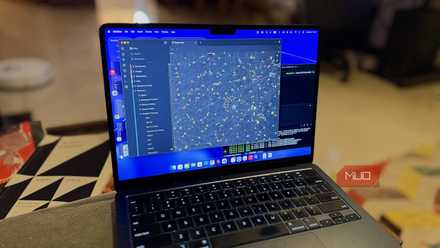
I hooked Obsidian to a local LLM and it beats NotebookLM at its own game
My notes now talk back and it’s terrifyingly useful.
Keyboard shortcuts are a must, so they go first
Speed up your writing with custom hotkeys

I write a lot, several hours a day, so I instinctively try to avoid switching between my keyboard and mouse whenever I can. That's also one reason I use a compact 70% keyboard. The first thing I do in any new Obsidian vault is set up keyboard shortcuts that let me stay in the flow of writing without reaching for the mouse.
You can configure these under Settings > Hotkeys. Obsidian already ships with a handful of useful defaults, but a few custom ones make a big difference. Ctrl + P opens the Command Palette — the fastest way to run any command by name. Ctrl + O opens the Quick Switcher for jumping between notes without touching the sidebar. Ctrl + E toggles between editing and reading mode. I use it constantly when reviewing drafts.
Two more I rely on daily: Ctrl + Shift + F opens a global search across the entire vault, and Ctrl + K inserts a Markdown link so I don't have to type the syntax manually. If you work with multiple notes open at once, Ctrl + Click on a link opens it in a new tab instead of replacing the current one, so your working note stays right where you left it.
These aren't exotic shortcuts, but having them ready from the start means I can navigate my vault almost entirely from the keyboard. Every vault I open gets them configured before I write a single note.
Theme
Making your vault look like something you want to open
I'm not big on customization, but a good-looking workspace always feels more welcoming than the plain default Obsidian look. My current setup is courtesy of a Reddit user named SamBorgman and his customized AnuPpuccin theme. SamBorgman has fine-tuned it with additional CSS through the Style Settings plugin, and in my opinion, it looks great, with nice visual distinction between the sidebar, active notes, tabs, and the editor area.
You can browse themes under Settings > Appearance > Themes > Manage. AnuPpuccin is among the top three most downloaded themes in the Obsidian community, so if you don't mind a bit of color, you can't go wrong with it. But themes are a personal thing. Some people prefer minimal, monochrome setups, and Obsidian has plenty of those, too. The point is to pick something that makes you actually want to open the app, not just put up with it.
I also recommend installing the Style Settings plugin alongside whatever theme you choose. Most popular themes expose extra options through it, like accent colors, font sizes, and sidebar layout tweaks, so you can dial in the look without touching any CSS yourself.
Configure bookmarks
Quick access to the notes you keep coming back to

I don't really use bookmarks in my web browser. They pile up and get ignored within weeks. But bookmarks in Obsidian are different because my vaults are far more focused than the open web. Every vault has a handful of notes I open almost daily, and bookmarks keep them one click away in the sidebar.
My bookmarked notes usually include my publishing checklist for articles, a running list of late-night ideas, a "do tomorrow" note for tasks I need to tackle first thing, and anything I'm afraid I'll forget if it isn't staring at me when I open the vault. Keeping the list short is what makes it useful.
Adding a bookmark is simple. Right-click any note in the file explorer and select Bookmark. You can also open the Command Palette with Ctrl + P and search for "bookmark." Once a note is bookmarked, it shows up in the Bookmarks panel in the sidebar. Pin it, and it stays visible at all times. I keep mine right at the top of the left sidebar, above the file explorer, so the most important notes are the first things I see.
The plugins
A few good ones beat a hundred installed ones

The plugin ecosystem is what makes Obsidian such a flexible tool, but I've learned from experience that too many plugins tend to slow things down more than they help. I keep my list short and only add the plugins I'd miss if they disappeared.
The one I use most is Obsidian Digital Garden, as it lets me publish my Obsidian vault as a live website without paying for Obsidian Publish. I use it to share select notes publicly while keeping the rest of my vault private. Beyond that, Tasks helps me track to-dos inside my notes with due dates and filters. Quick Switcher++ extends the default switcher with the ability to search by headings and symbols inside notes. It's a lifesaver once your vault grows past a few hundred files.
Markdown Table Editor makes working with tables far less painful. If you've ever tried to format a Markdown table by hand, you know how quickly the columns fall out of alignment. This plugin handles it visually. Obsidian Git automatically backs up my vault to a Git repository on a regular schedule. It runs in the background and keeps version history without me having to manage it. And Claudian connects Claude AI directly inside Obsidian, useful for brainstorming and drafting when I want to stay in the app.
That's six plugins total across most of my vaults. I've tried far more than that over the years, but I always come back to this core set because each one solves a specific problem I run into regularly.

- OS
- Windows, macOS, Linux, Android, iOS, iPadOS
- Developer
- Dynalist Inc.
Obsidian is a local-first, Markdown-based note-taking application that stores your notes as plain text files and lets you build interlinked “vaults” of knowledge. It supports plug-ins, graph visualisations, and full control of your data rather than locking you into a proprietary format.
The setup that keeps me writing, not tinkering
None of these changes takes more than a few minutes on their own, but together they make a new vault feel like somewhere I've already been. I spend less time hunting for things or reaching for the mouse, and more time actually writing.
This setup won't work for everyone. Some of these choices, especially the theme and the plugin list, are shaped by how I work as a writer. Your vault might need a completely different set of tools depending on whether you're using Obsidian for research, project management, or personal journaling. But the idea is the same either way: get the basics sorted early so you're spending time in the vault, not configuring it.