


I've been having some trouble with my Wi-Fi. I have a new neighbor, and they've installed a new router in their home, which is, of course, their right. But since then, my own Wi-Fi has become a little iffy: slower speeds, dropped connections, and so on.
Thankfully, the fix for this problem wasn't far away. In fact, it was on the router itself; a quick Wi-Fi channel scan quickly showed me that our networks were inadvertently interfering with one another — which is wonderfully easy to solve and get back up to full speed again.
Wi-Fi channels are limited
Everyone is competing for the same space

Wi-Fi doesn't just broadcast your signal into the air and hope for the best. Wi-Fi actually operates on specific channels within each frequency band. On the 2.4GHz band, you've got three non-overlapping channels that don't interfere with each other: 1, 6, and 11. That means that, effectively, all devices on the 2.4GHz band fight for those three channels, which can cause congestion, especially if you live somewhere with many competing signals. It can be even more problematic if your router automatically chooses the worst option, too.
It's a bit different on the 5GHz and newer 6GHz band, both of which have considerably more room to operate.
The 5GHz band has up to 25 non-overlapping 20MHz channels, but the range is shorter, and plenty of devices still default to 2.4GHz for exactly that reason. The 6GHz band, available on Wi-Fi 6E and Wi-Fi 7 routers, goes further still: 59 non-overlapping 20MHz channels, and virtually no legacy device congestion because most older hardware can't even see it.
Note the pattern? The oldest band has just three non-overlapping channels, while the latest has 59. Overlapping Wi-Fi channels is a big problem.
Running a channel scan is easier than it sounds
Your router probably has one built in

Most modern routers include a wireless survey or site survey tool buried somewhere in the admin panel. It goes by different names — wireless analysis, channel scanner, site survey, etc. — depending on the manufacturer, but it'll generally be something similar in your router's admin panel.
Now, if your router doesn't have one or you can't find it, you do have some options. I'd suggest trying out a Wi-Fi scanning app on Android or trying out AirPort on iPhone. It'll give you a good idea of the channels in use in your area and where to direct your own.
In all cases, you're looking for which channels nearby networks are sitting on, how many of them are there, and whether any are running wide channel widths that bleed into adjacent channels.
Run the scan in the evening, not mid-morning. Network congestion follows human patterns. If you scan at 10am on a Tuesday, you'll see a quieter picture than you will at 8pm when everyone's home and streaming something.

What my Wi-Fi scan showed
Channel 11 is rather busy; Channel 1 is the dream


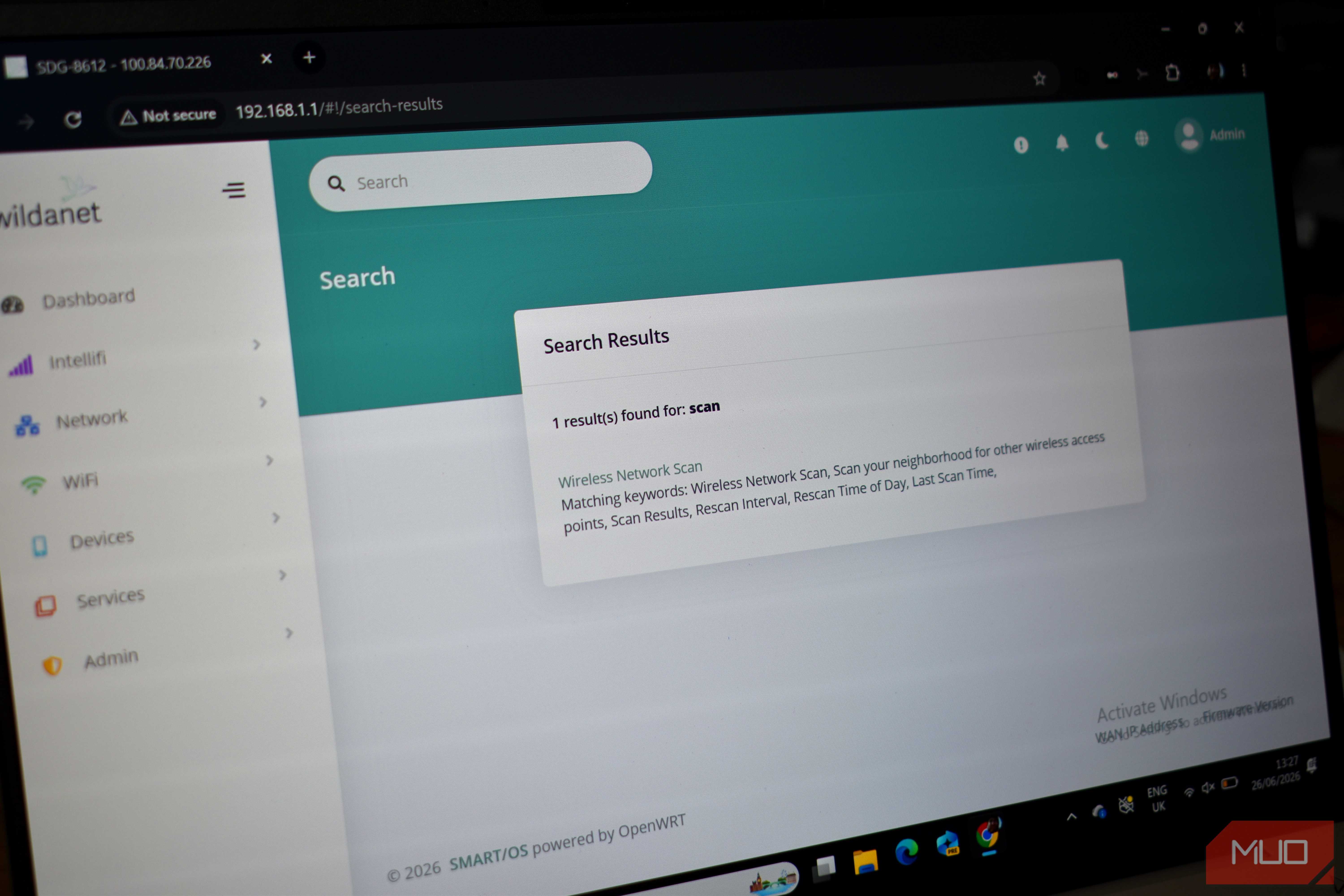
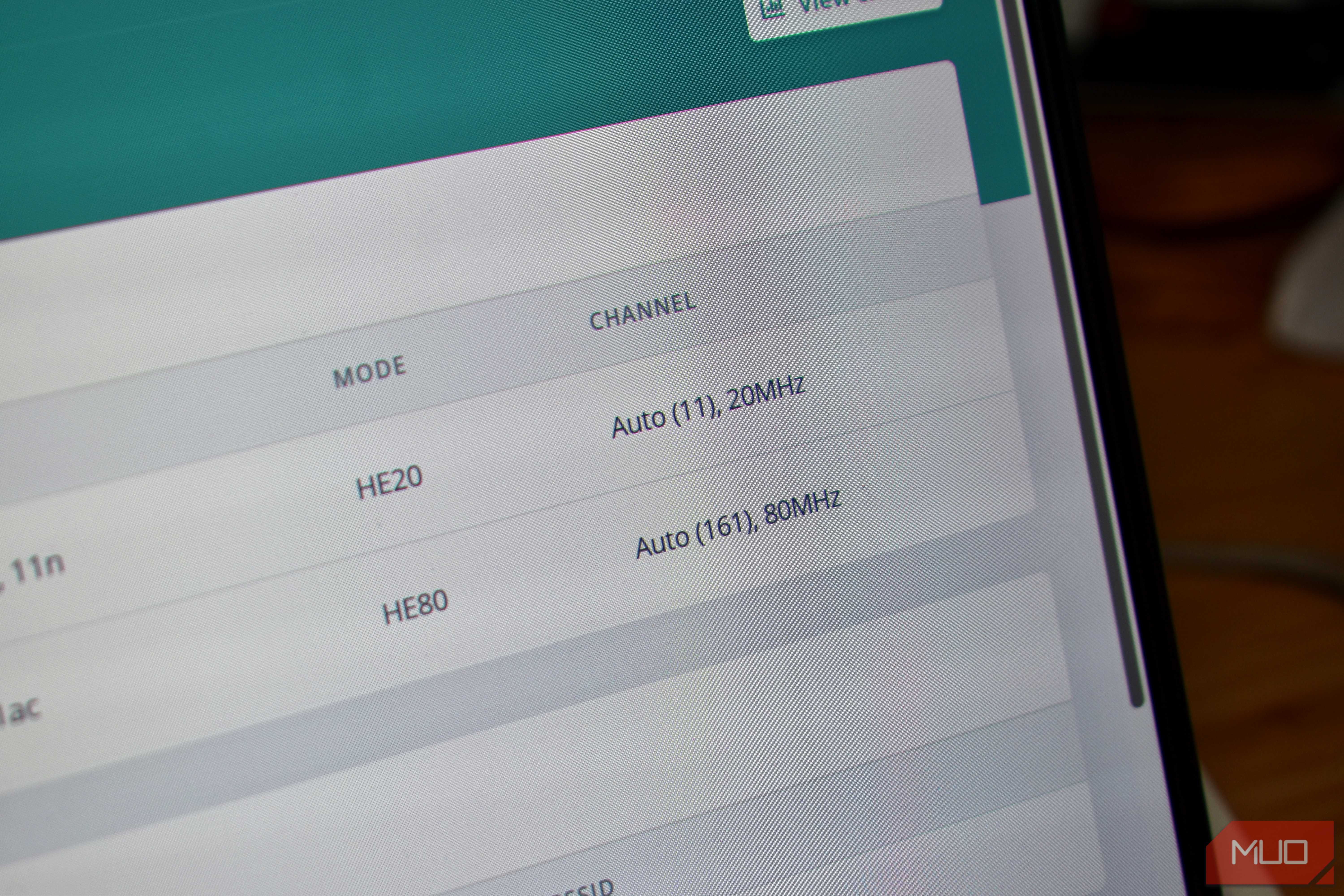
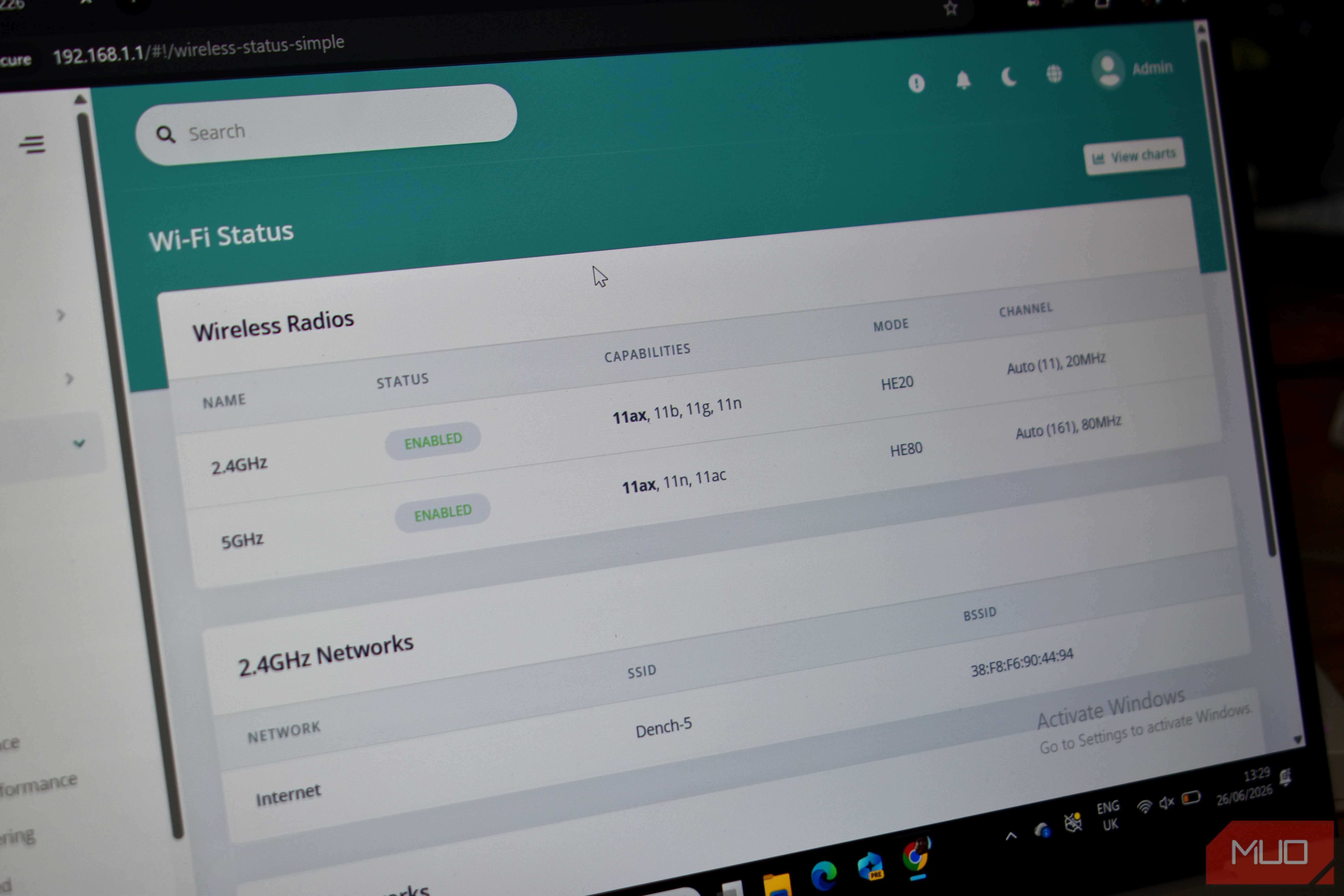
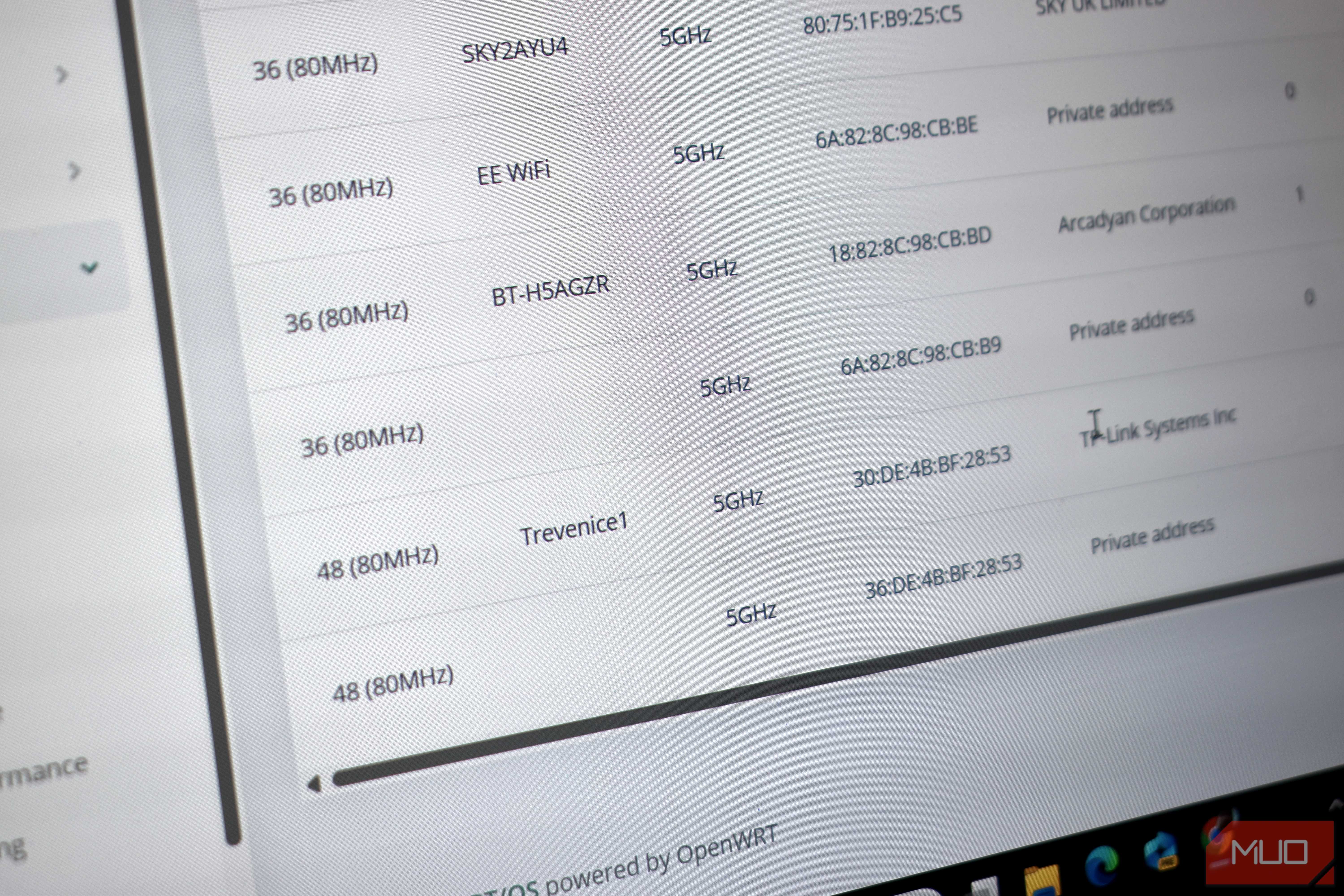
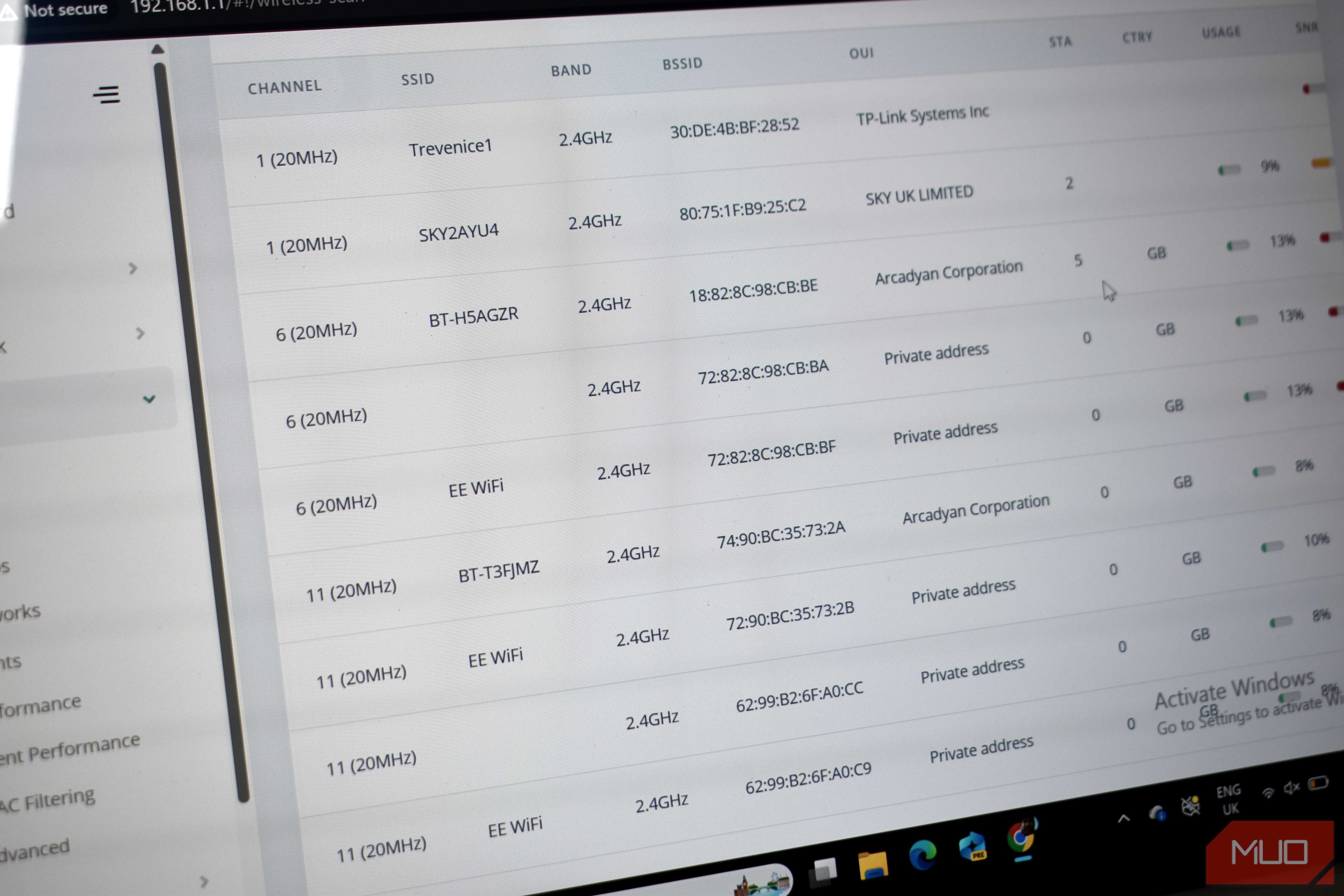
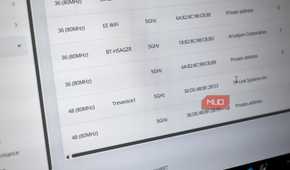
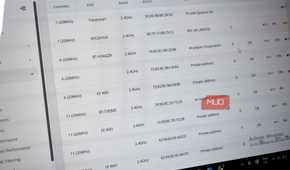
My Wi-Fi channel scan showed roughly what I'd expected: two of the 2.4GHz channels were busy, and one was nice and clear. And wouldn't you know it? I was on the busiest channel.
In this case, Channel 11 had at least seven other networks in range and broadcasting, with a mixture of routers and networks all competing for space. I also found some private devices that don't show a proper name. Channel 6 wasn't much better: four networks sitting on it, all competing for the same airtime.
Channel 1 had two networks on it, which is effectively empty.
So, I made the switch, and while my internet speeds didn't make a generational leap forward, I definitely noticed smoother and more stable broadcasting, with less drop outs. Win!
Wi-Fi channel auto-scan is a thing
It doesn't always adapt
This is the thing that gets me about channel congestion — there's no alarm for it. Your router doesn't tell you it's competing with seven other networks for the same airtime. That said, many routers now have automatic channel management and should theoretically move you around to find the best signal and least congestion, but at times, it doesn't seem to work.
It picks a reasonable channel based on what the router can see at startup, and for a lot of people in less dense areas, it'll pick something sensible and stay there fine. The issue is that it evaluates once and then commits. It doesn't re-evaluate as the neighborhood fills up with more devices and hardware.
Furthermore, changing your Wi-Fi channel is often touted as a panacea for all your internet woes. The reality is that while changing your Wi-Fi channel is useful, it can't fix slow incoming speeds, poor router placement, building materials, and other common Wi-Fi problems.
It's just one part of the biggest Wi-Fi signal picture. In that, it's absolutely worth playing around with, but don't expect it to cure all your Wi-Fi ills.