


Windows comes with a very basic clipboard manager that you can access with Win + V, and it can hold up to 25 items at a time. A bigger limitation, however, is the lack of history persistence. When you restart your PC, all your clipboard items, except for the pinned items, are gone.
After trying many clipboard managers for Windows, I stuck with Ditto for the longest time. However, Ditto is a desktop tool, so it doesn't work with my Android phone, which is important because I prefer to share my clipboard during work. Then I came across Octoclip, a cross-platform clipboard manager, and now my clipboard works everywhere.
Octoclip works everywhere
Cross-device sync that doesn't let you down

Once you try a cross-device clipboard, there's no going back. Windows does offer a way to do this with the help of the Phone Link app, but it's cumbersome and hit or miss. Octoclip's specialty is reliable cross-device sync, so it works across your Windows, macOS, Android, and iOS devices every single time.
To get started, download the desktop app on your PC, then grab the companion app from the Play Store or App Store for your phone. Open the desktop app's settings, head to Nearby Sync, and it'll start scanning for devices on your local network. Select your phone from the list and pair it. Once paired, anything you copy on your PC automatically syncs to your phone's clipboard.
There's a small caveat, though. While items copied from your PC show up on your phone without any extra steps, anything you copy on your phone needs a manual nudge to sync back to your PC. You'll have to open the Octoclip app on your phone and pull down to refresh the clipboard to push clipboard items to your desktop. It's a minor inconvenience, but something to keep in mind. You'll also need to enable Background Monitoring by granting Accessibility permissions on your phone so the app can capture clipboard changes in the background.
If you want sync to work across different networks, Octoclip also supports Cloud Sync through WebDAV or S3, which means you can sync clipboard items between devices even when they're not on the same Wi-Fi.
Using Octoclip
Shortcuts, search, and aliases make it fast


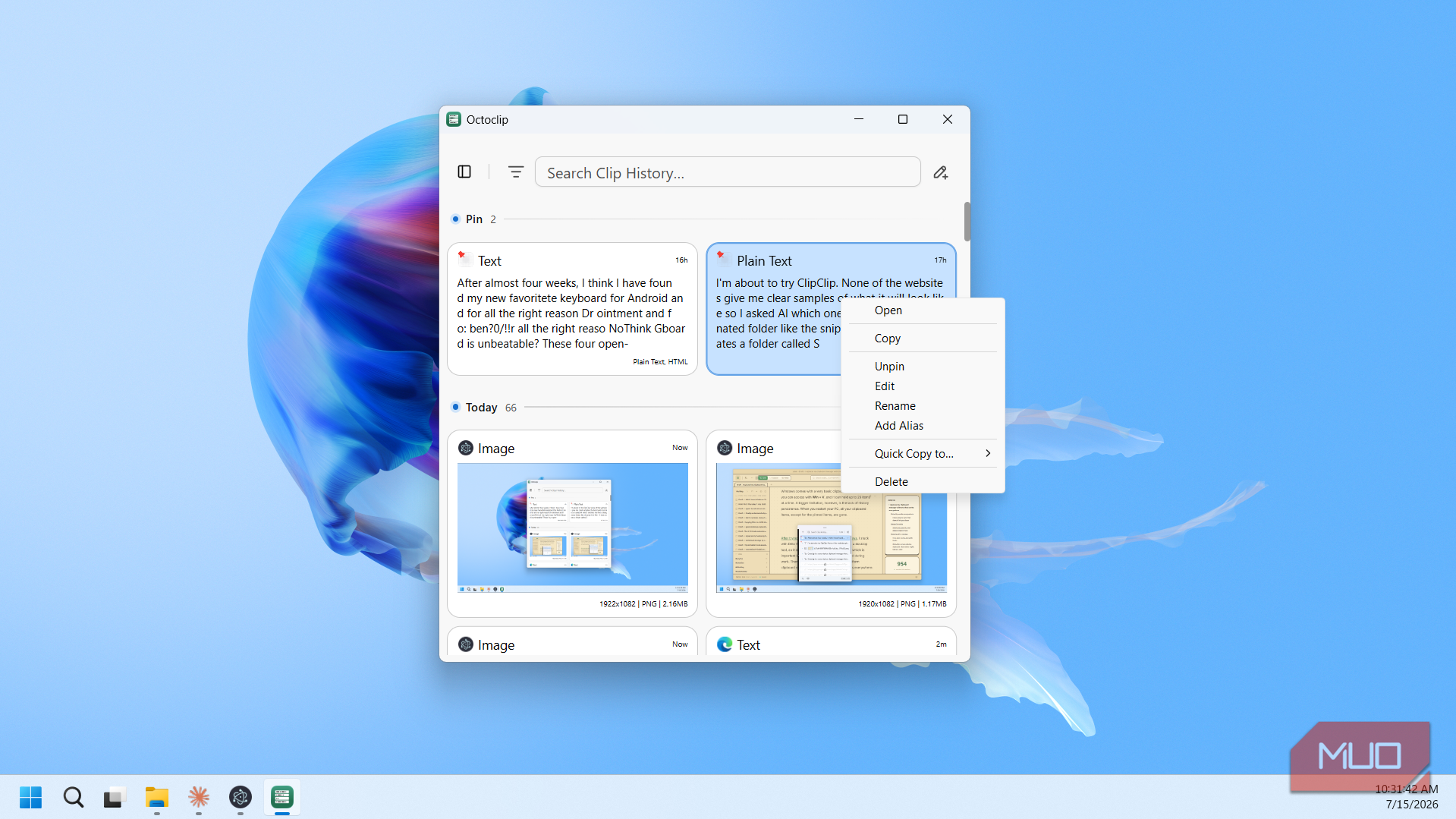
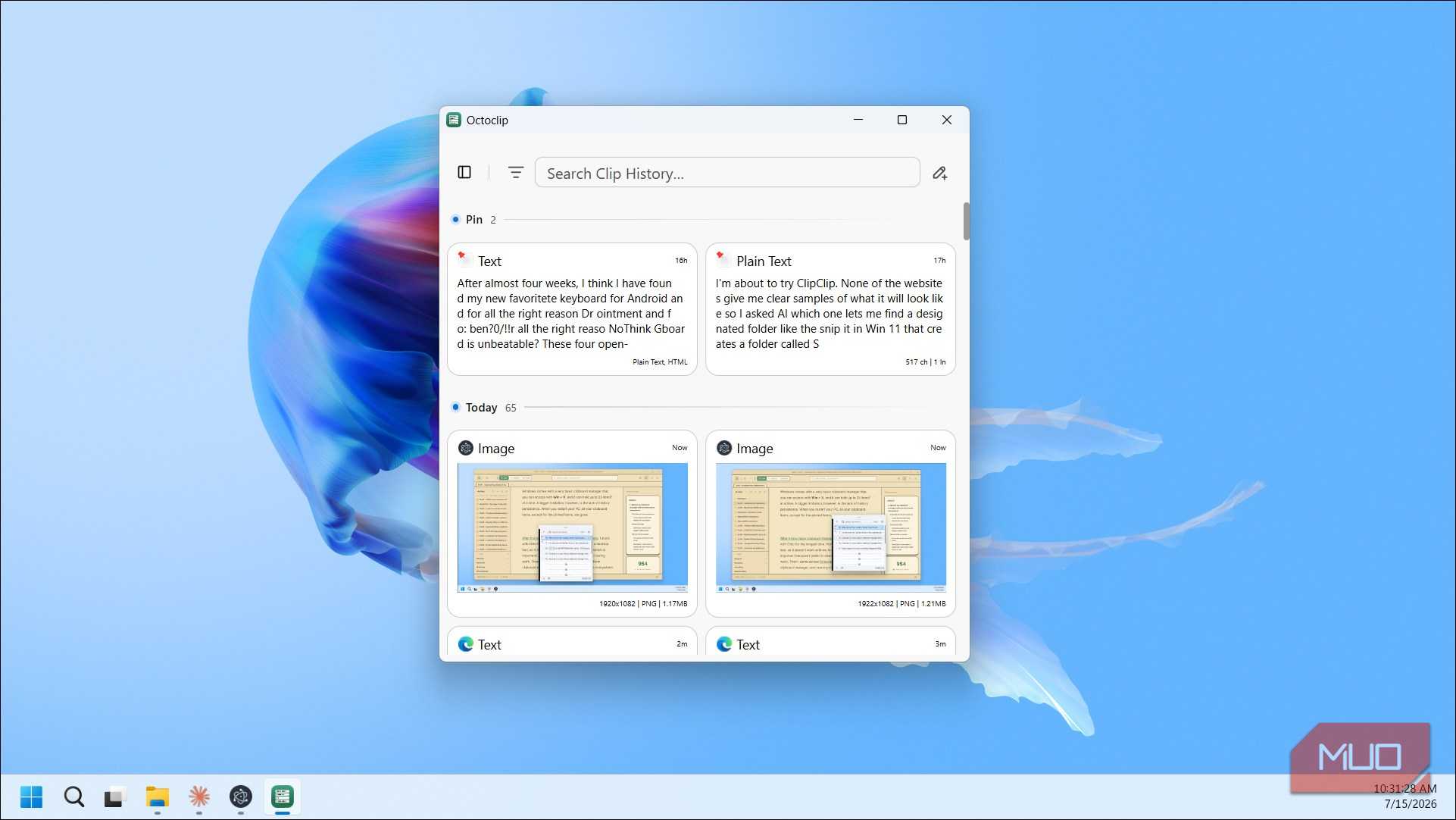
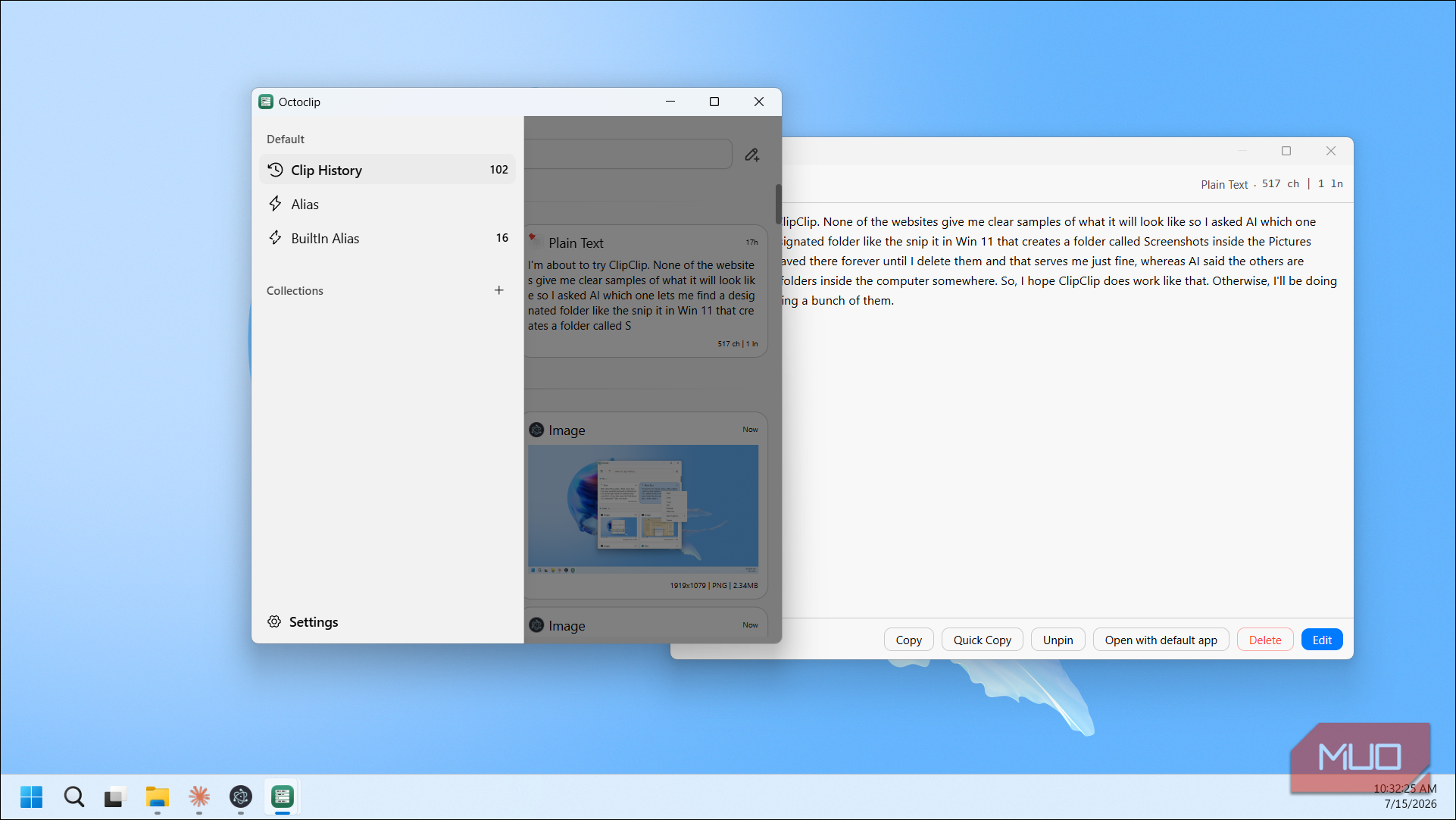
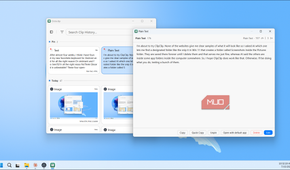
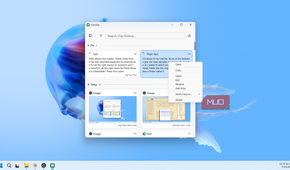
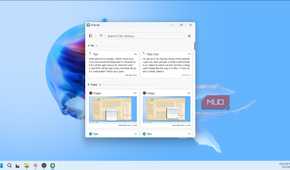
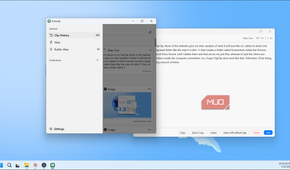
By default, the Ctrl + ; shortcut launches the Octoclip quick input window. From there, you can either use your keyboard's arrow keys to select an item and hit Enter to paste it, or just click on it with your mouse. You can also use Ctrl + 1, Ctrl + 2, and so on to quick-paste items by position without making a selection first.
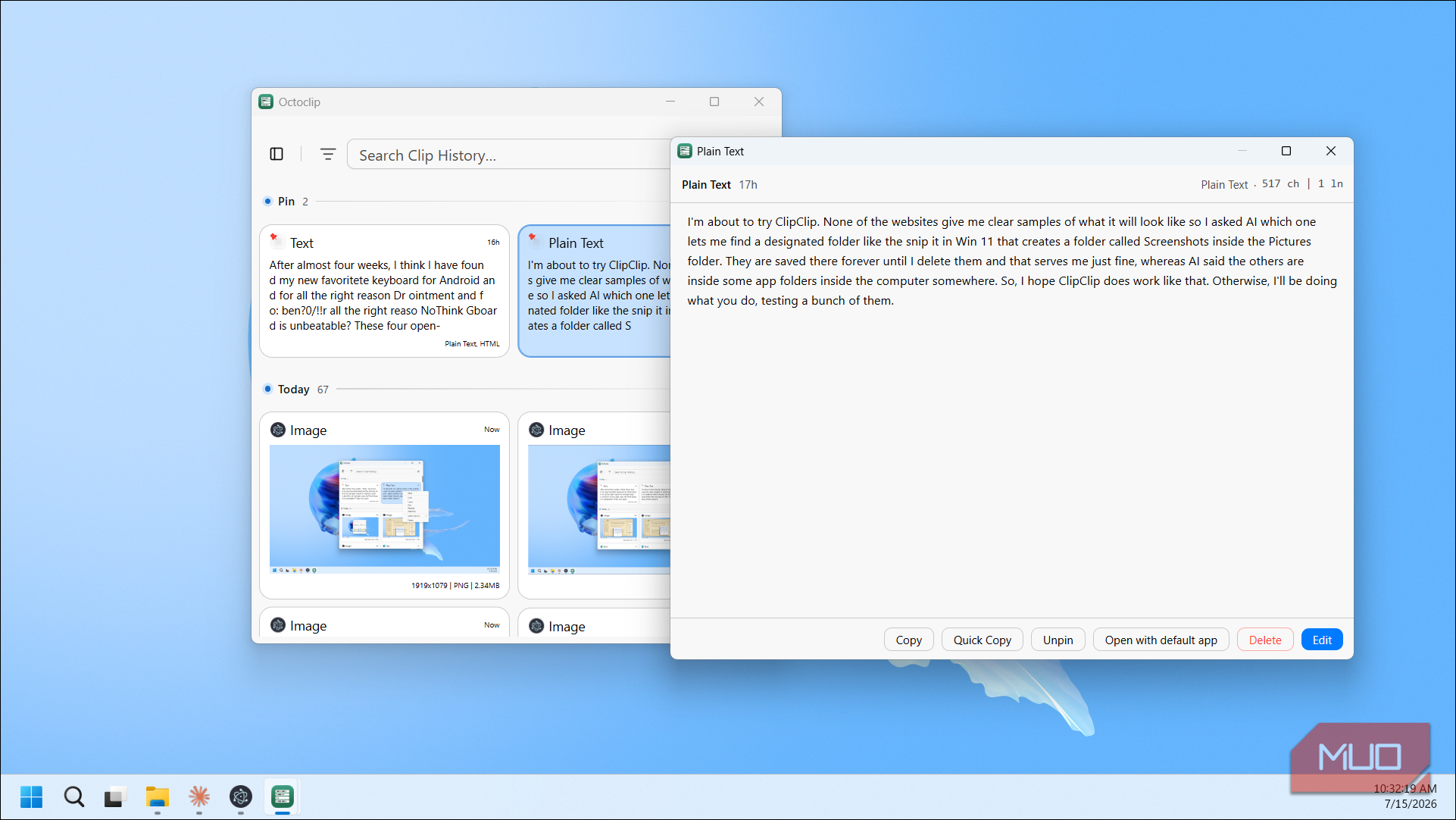
The standard features are all here. There's a search bar at the top of the clipboard window that filters your history as you type, and you can pin frequently used items so they stay at the top. Octoclip also categorizes your clips by type, so you can filter by plain text, URLs, images, or even color codes, which is a nice touch if you work with design tools.
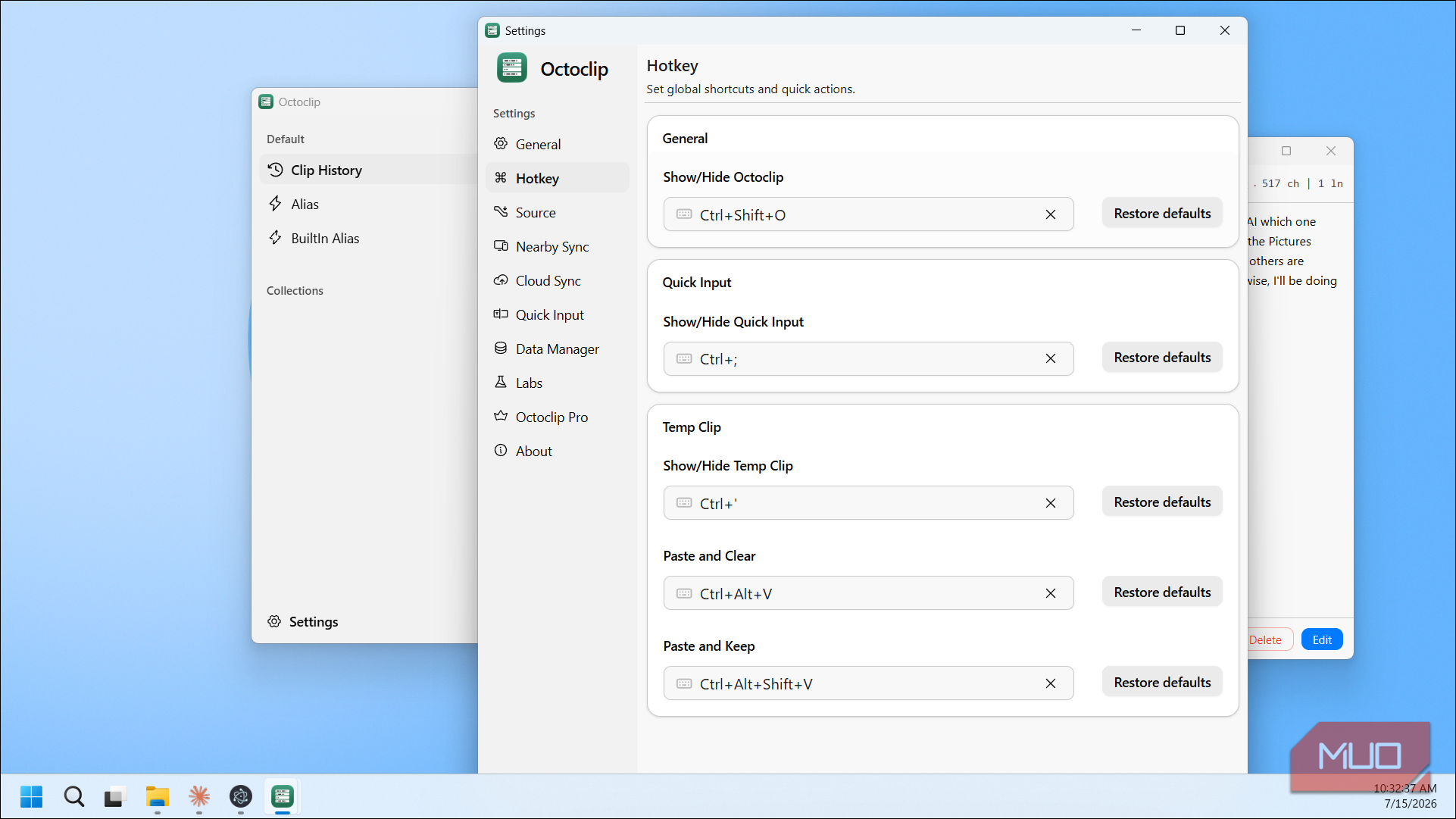
Press Ctrl + Shift + O to bring up the full Octoclip dialog where you can view your complete clip history, manage your aliases, and configure settings. Aliases are one of the more useful features here. You can bind short trigger words to longer text you paste frequently. For example, set "sig" as an alias for your full email signature, type "sig" in the quick input window, and the full signature expands automatically. Octoclip ships with a few built-in aliases to get you started, but you can also create your own from the dialog.
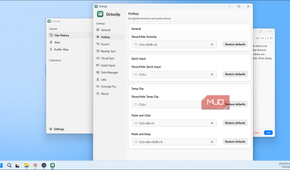
Head to the Settings page, and you can configure hotkeys, nearby sync, cloud sync, quick input behavior, data management, and general preferences like startup behavior, copy sounds, and whether to strip formatting from copied text. The Data Manager is worth a look too. It shows your storage usage broken down by type, lets you clean up large items, and even lets you create encrypted backups of your clipboard history.
There's a Pro version
The free plan works, but with limits

Octoclip has a Pro version with two tiers: the Standard License costs $19.99 as a one-time payment and covers two devices, while the Plus License costs $39.99 and covers up to five. Both are lifetime licenses with no subscription required.
Here's the catch, though. The free plan limits your clipboard history, and features like full clip history, collections, aliases, and instant cloud sync are reserved for Pro users. If you want a solid clipboard manager with cross-device functionality and unlimited history, you'd need to upgrade.
I went with the Standard License because I can justify spending $20 on a tool I use dozens of times a day. For me, a cross-device clipboard manager is an essential upgrade. But if you're not sure about committing, it's entirely possible to use Octoclip's free plan just for the cross-device sync and keep a fully free alternative like Ditto as your main desktop clipboard manager. The free plan still handles nearby sync and basic clipboard features, which might be enough if you mostly just need to move the occasional link or text snippet between your phone and PC.

Octoclip
- OS
- Windows, macOS, Android, iOS
- Price model
- Free, Premium
Octoclip is a cross-device clipboard manager that syncs copied text, links, and files instantly across your phone, tablet, and computer.
Octoclip is a cross-device clipboard share done right, but at a cost
Octoclip is not the only cross-device clipboard manager around. CrossPaste is another option, but it feels rather quirky to use. While the feature set is more lenient on the free tier, you still need to pay to remove ads or use it without restrictions. After trying both, Octoclip comes out as a more solid solution for cross-device clipboard sync, earning it a place in my setup.