

Adapters are supposed to make a wired connection much easier, but they don't. The adapter sitting between your computer and that cable might be actively ruining your speeds. A cheap USB-to-Ethernet dongle can't handle modern gigabit internet. These tiny devices bottleneck data, overheat, and are arguably worse than Wi-Fi. Sure, more expensive options or trickier adapters can do it, but a simple wired connection is easier to handle.
The problem with low-quality adapters
It's a lot worse than you think


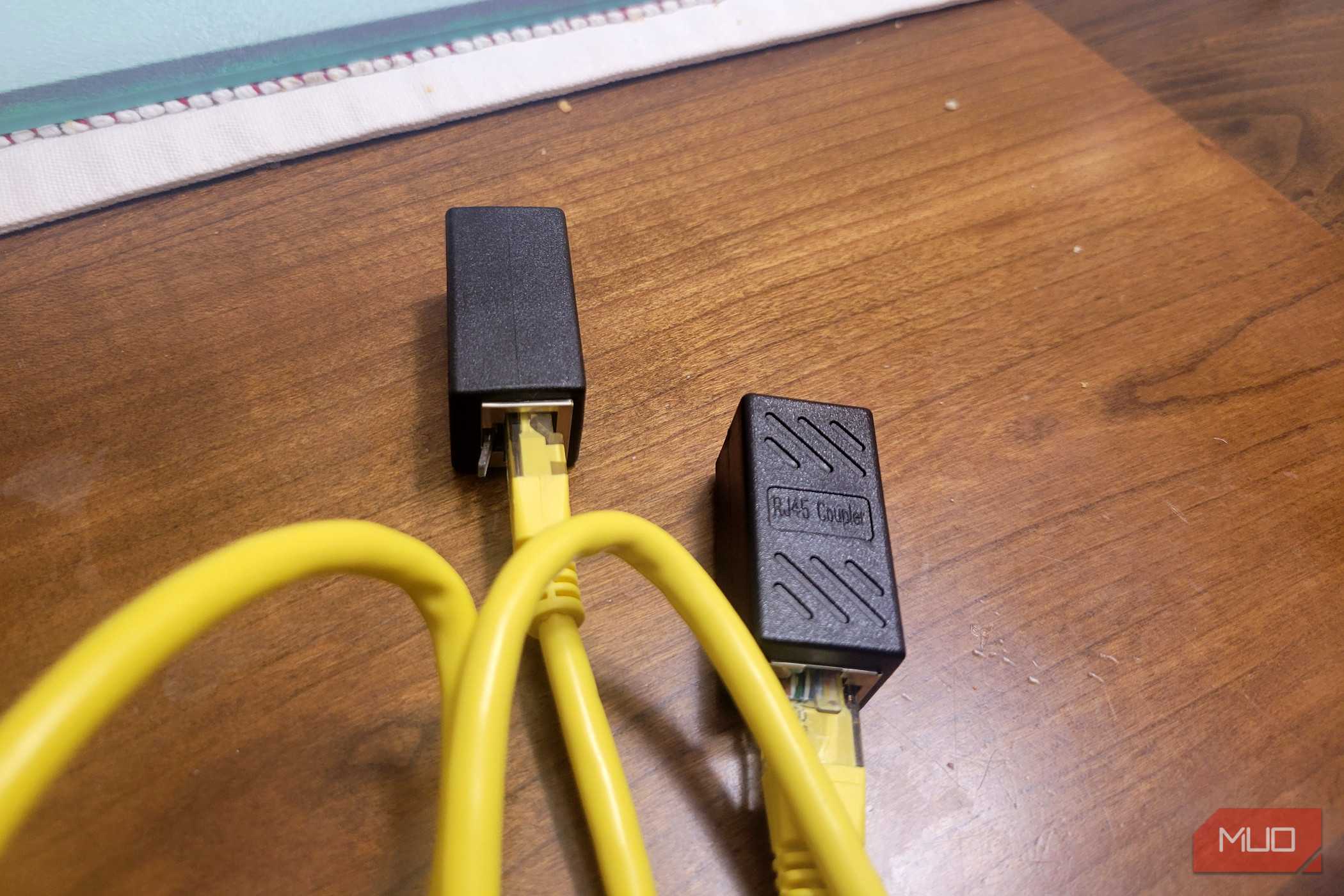
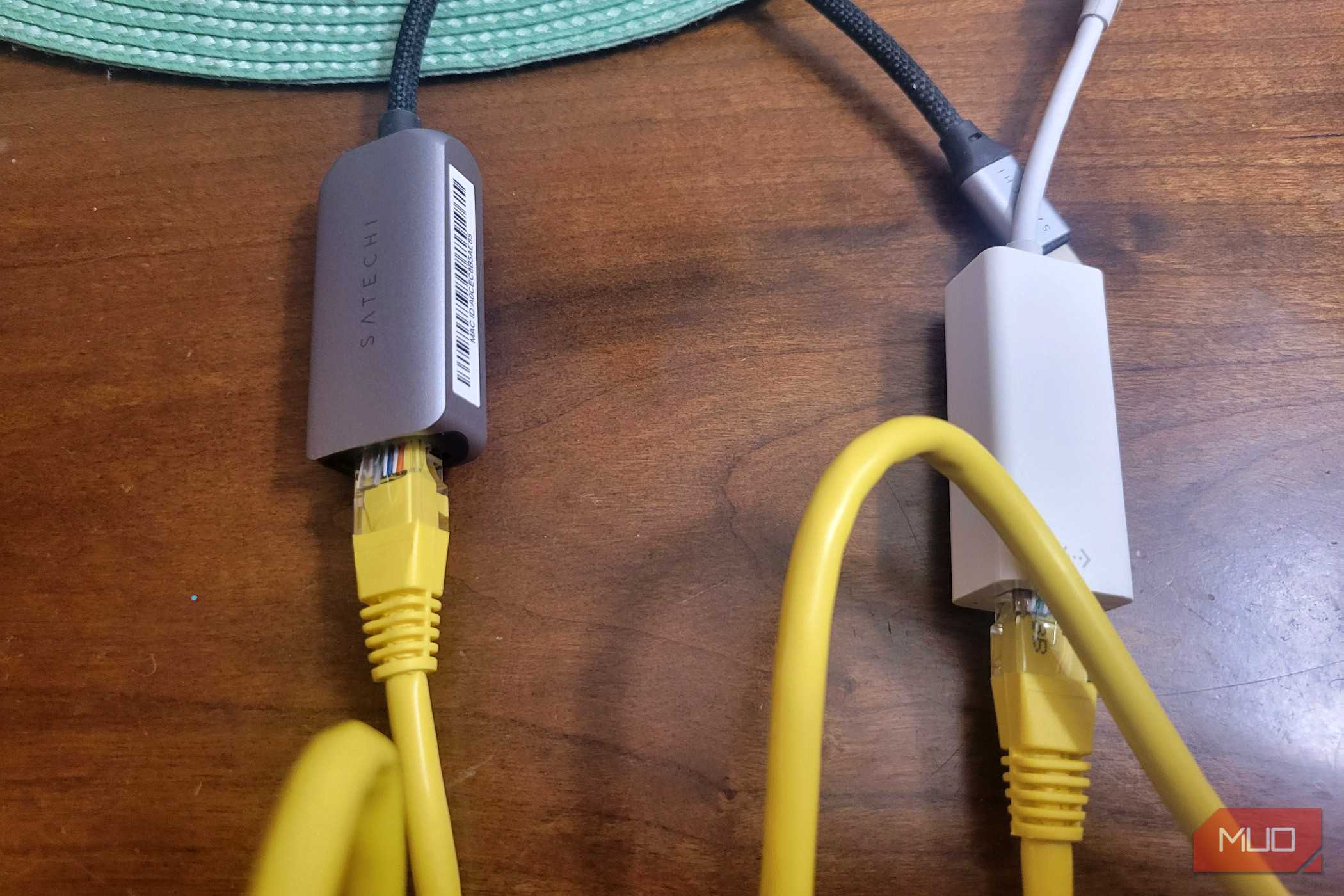
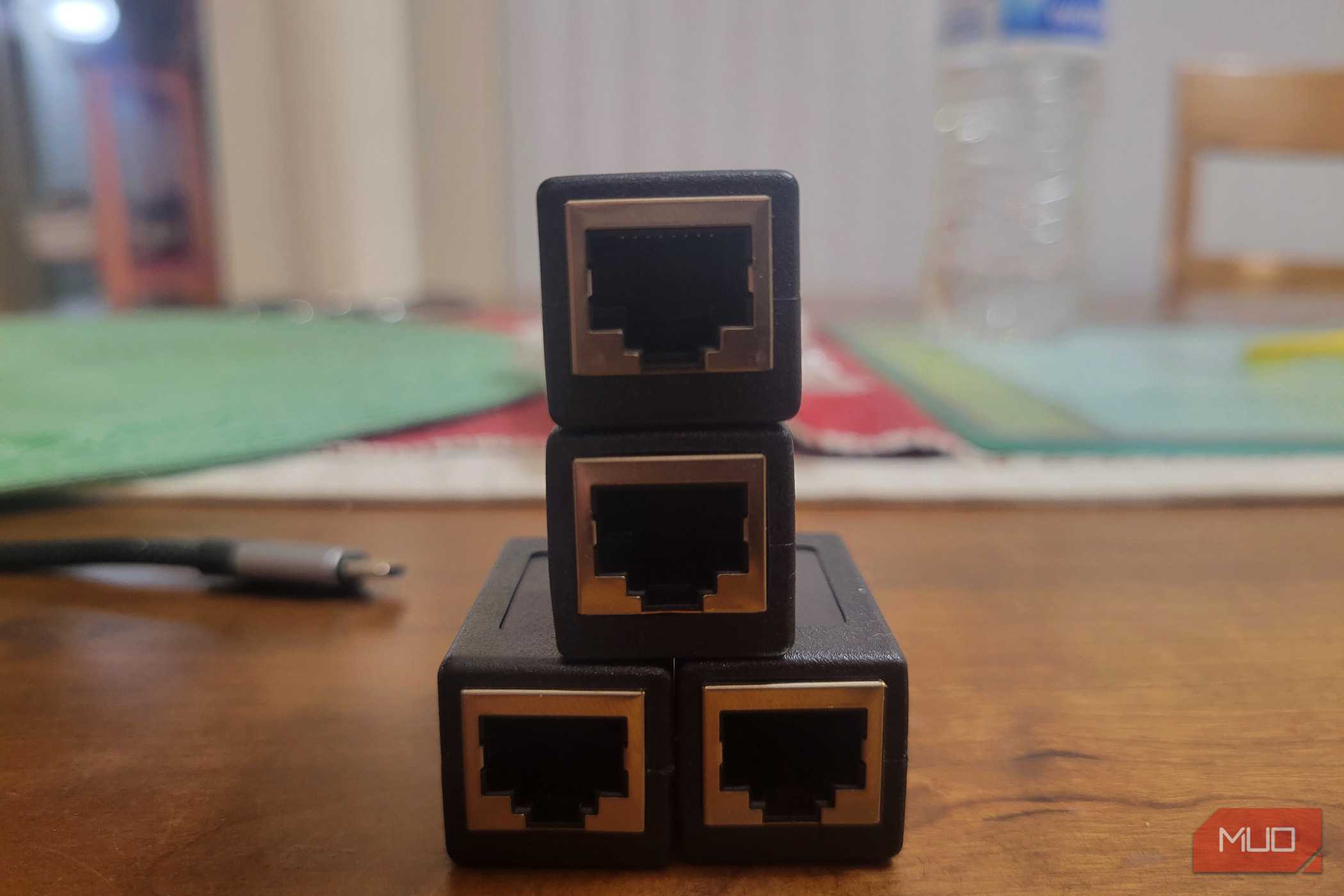
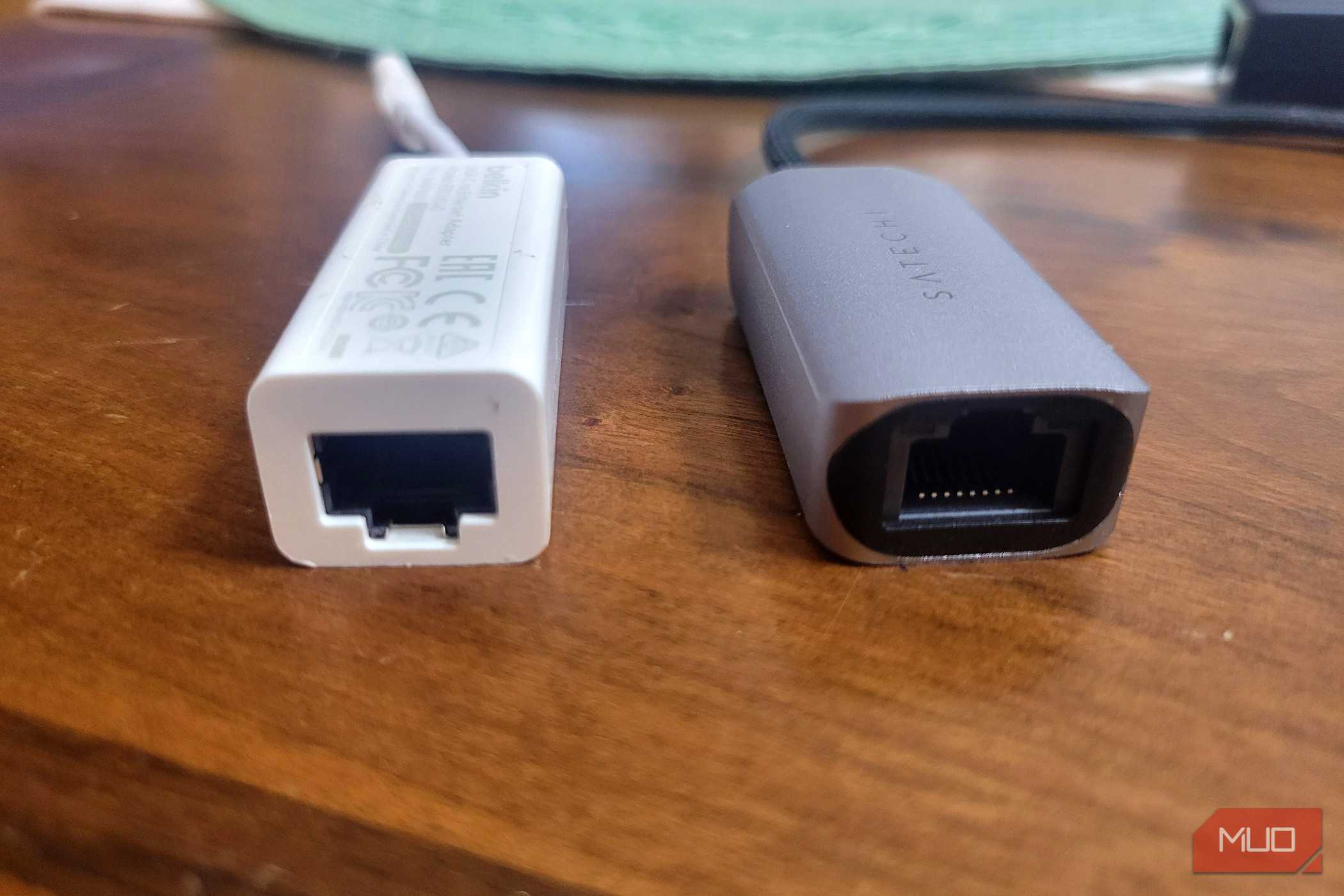
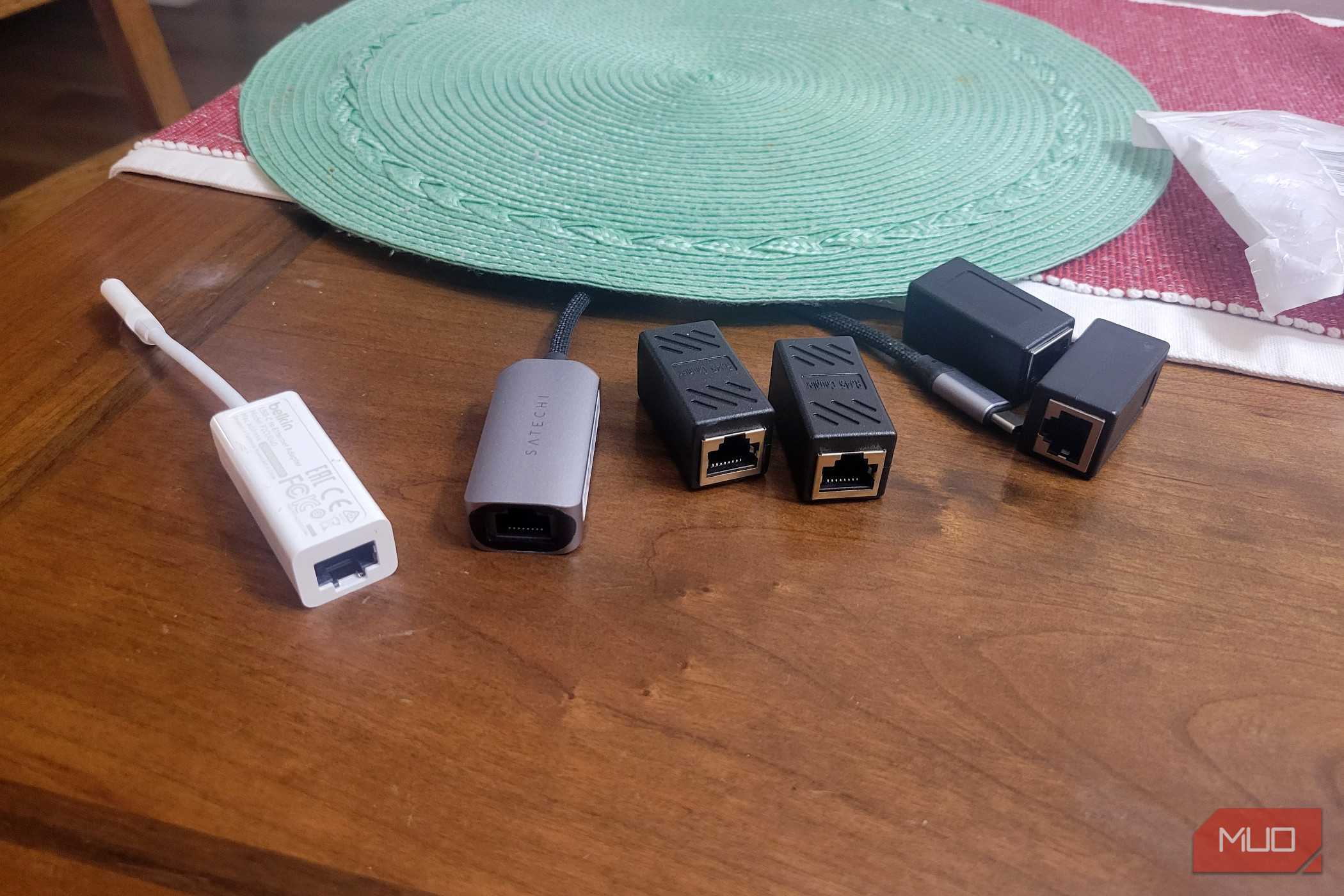
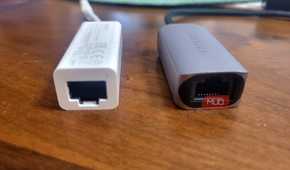
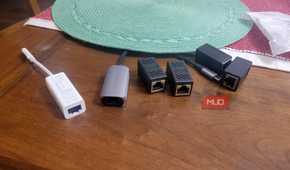
Most people assume that plugging in an Ethernet cable automatically means they're getting the best possible internet speeds. That's not always true, especially if you're using a cheap or older USB-A adapter. When you connect an Ethernet cable through a USB port, the adapter can't just passively pass data through.
It has a chip inside that actively translates between USB and Ethernet protocols, and that chip matters a lot. A lot of people are still using old USB 2.0 adapters without realizing it. Those were never built for modern gigabit internet.
USB 2.0 tops out at 480Mbps in theory, but in practice, once the adapter does all the work of converting data between formats, you're looking at somewhere between 300 and 400Mbps, which is about 30 to 40MB/s. So if you're paying for a 1Gbps connection and running it through one of these older adapters, you're getting less than half the speed you're paying for.
It gets worse if you're using a cheap USB hub, because not all are the same. Budget hubs make every device plugged into them share the same upstream connection. So if your Ethernet adapter is sitting next to an external hard drive or a webcam, they're all fighting over the same bandwidth.
On top of that, cheap adapters are crammed into tiny plastic or metal cases with no ventilation most of the time. The conversion process generates real heat, and without anywhere for that heat to go, the adapter throttles itself to avoid overheating. That leads to more errors, dropped connections, and generally unreliable performance.
So your wired connection can actually be slower than a decent Wi-Fi signal. The old rule that a wired connection always beats wireless just doesn't hold up once adapters are involved.
 Quiz
QuizHow many common WiFi and ethernet bottlenecks do you know?
Think your home network is running at full speed? These sneaky bottlenecks might be slowing you down more than you realise.
You upgrade to a gigabit internet plan, but your speeds still cap out around 100 Mbps. What is the most likely culprit?
A user places their WiFi router inside a closed entertainment unit cabinet for a tidy living room. What is the primary networking problem this causes?
A household has a gigabit router but connects it to their modem using an old USB 2.0 to ethernet adapter on their PC. What is the maximum theoretical speed that adapter can deliver?
Why can placing a WiFi router near a microwave oven or cordless phone base station cause significant speed drops?
A user daisy-chains three unmanaged switches together to extend their wired network across a home. What networking problem does this commonly introduce?
A user notices their WiFi is slowest in the evenings. Their router is set to automatically select its WiFi channel. What is most likely happening?
A user's PC has a 2.5 Gbps ethernet port, a Cat 6A cable, and a 2.5 Gbps internet plan, but speeds are stuck at 1 Gbps. What component is the most likely bottleneck?
A laptop consistently gets faster WiFi speeds on the opposite side of the house than when sitting right next to the router. What well-known wireless phenomenon explains this?
Your Score
Thanks for playing!
Wired connections are hurt by adapters
Don't assume every wired connection is the same

If you want to actually get the gigabit speeds you're paying for, plug directly into a native port rather than going through a USB-to-Ethernet adapter. The reason comes down to how your hardware talks to the rest of your system.
Built-in network cards can write incoming data directly into your system's RAM without bothering the CPU. On higher-end systems, that data can land straight in the CPU's cache, skipping main memory entirely. It's fast, efficient, and largely hands-off.
USB adapters can't do any of that. They're dependent on the USB host controller to babysit every transaction, which means your CPU has to step in constantly. It runs software loops to pull packet data from the adapter's buffers and shove it into the network stack.
Under a sustained gigabit load, that overhead adds up fast: you get higher latency, jitter, and dropped packets as your processor struggles to keep pace. If you need a proper high-throughput connection, a PCIe NIC or a native Thunderbolt controller sidesteps all of this.
If you're not sure whether your adapter is the problem, it's easy enough to check. Quick tools like Speedtest.net or Fast.com will give you a rough sense of your speeds, but iperf3 is more useful here. It runs a sustained transfer test that puts real stress on your hardware. Run it while watching traffic in Wireshark, and you'll see pretty clearly if your adapter is dropping packets or retransmitting under load.
The simplest test, though, is just to plug directly into your modem or router with a Cat 6 cable and run the same speed test. If you're suddenly hitting 1Gbps with no issues, you've found your culprit.
Wired versus wireless is not that simple
Sometimes, wireless is better

I used to think the golden rule of home networking was simple: wired beats wireless, always. I still own my Mac's adapter because I thought this was generally true. If you're comparing a proper PCIe network card to a weak Wi-Fi signal, it is. However, that rule falls apart the moment your wired setup runs through a cheap USB-to-Ethernet dongle.
The hardware you use to plug in matters just as much as the cable itself. If your traffic is being squeezed through a low-quality adapter that overheats, struggles to keep up, or quietly drops your link speed to 100 Mbps because of a dodgy wire or worn pin, your supposedly superior wired connection is actively making things worse.
A compromised adapter drops packets, adds latency, and chokes your speeds. Wi-Fi 6E opened up the 6GHz band, pulling devices off the congested 2.4 and 5GHz frequencies that everyone and their neighbor is competing on. Wi-Fi 7 goes further by letting your device connect across multiple frequency bands simultaneously.
Stack that against a budget USB adapter and wireless starts looking pretty good. A quality Wi-Fi 7 PCIe card like the Intel BE200 can hit real-world sustained speeds above 7.3Gbps with near-zero packet loss and latency under 2 milliseconds.
Meanwhile, a cheap USB 3.0 adapter built on something like the RTL8153 chipset might struggle to hold 312Mbps during a heavy file transfer, all while hammering your CPU and throttling itself because it has no real way to shed heat.
If your computer doesn't have a built-in Ethernet port, and you're forced to use a budget USB dongle, it's worth checking if that cable is actually doing you any favors. Dealing with random disconnects and capped speeds just to say you're hardwired isn't worth it.
Adapters aren't reliable
Relying entirely on wireless connections isn't the right choice for every situation. A native, built-in network port will always deliver the most stable and reliable data transfer when you're downloading massive files or gaming. If you're using a desktop computer with open expansion slots, installing a dedicated internal network card is still the best move. But if you're on a thin laptop and a cheap USB dongle is your only option, sticking with the cable might actually be slowing you down.

Jadaol Cat 8 Ethernet Cable
- Brand
- Jadaol
- Length
- 25ft
The Jadaol Cat 8 Ethernet Cable is ideal if you need a longer Cat 8 cable for use in the office, warehouse, or outdoors. It is weatherproof and features UV resistance, while the flat design is perfect for hiding under carpets.