


Samsung used to get criticized for cramming too many features into its phones. Years ago, those extras often hurt battery life and performance, so many people turned them off. But modern phones have more than enough power and battery headroom, and that has changed how I use Samsung’s “kitchen sink” approach.
Some of Samsung’s most overlooked features are also its most useful, especially for customizing your phone and automating tasks.
Good Lock is the phone tweakers' dream
Use modules like Home Up, RegiStar and Sound Assistant to customize core system experiences

Good Lock lets you change the look, feel, and behavior of your phone with special modules you can download for free. It's on every Galaxy, and if you're not using it, you're missing out. Here are my favorites.
- Home Up lets you change the look of your recent apps so that you can see up to eight recent apps in your task switcher instead of the usual three. To do this, open Good Lock and install Home Up, then go to Task Changer > Turn On > change Layout type to the design you like. There are other settings in Home Up like the ability to hide app labels from your recent apps to make for an even cleaner look, or even Mini Mode, which shrinks the entire recents menu to the bottom of the screen to make switching apps with one hand much easier.
- RegiStar lets you set up a back-tap action to your phone when you double or triple tap the back of your phone to open any app or do a variety of commands. To do this, just install RegiStar and go to Back-tap Action.
- Sound Assistant gives you full control over your volume panel — you can restyle the sliders (even into rotary "knobs") and, most usefully, add individual volume controls for separate apps, so your music, navigation, and assistant each get their own slider. Go to Sound Assistant > Customize volume panel or Individual app volumes.
The above are my favorite Good Lock modules, but there are so many more you can explore that let you deeply customize your phone. Here's a Good Lock guide on some other great modules you can add, like ones to customize display settings on a per-app basis, clean up your phone's status bar, and more.
Edge Panel is better than ever
Put your favorite apps and actions within easy reach

I used to think Samsung's Edge Panel was a gimmick and a waste of system resources. But with new features that have been added, plus the fact that the latest Samsung phones have plenty of power to run features like Edge Panel, I now keep it on so that I can keep apps and actions always a swipe away.
To turn on Edge Panels, just go to Settings > Display > Edge panels.
The key is to customize Edge Panels to the way you use your phone

You can have up to eight different Edge Panels to swipe through, all customizable, when you go to Edge Panels > Panels. From here you can turn on and customize panels for apps, people, tasks, tools, clipboard history, weather and more.
My favorites to turn on are the apps panel (where I place the eight or so apps I use on a regular basis), plus a couple of Samsung tools like AI select and the translator. Then I like to add the people tab, where I add my favorite six or so contacts that I can instantly call or text any of them from any screen. Lastly, the Clipboard History panel is incredibly handy so I can go back in time to see a history of anything I've copied, with a one-touch button to copy any item in my history again.
Edge Panel keeps things a swipe away — but Routines takes it further by removing the swipe entirely, letting your phone act on its own.
Samsung Routines automates your phone
Using if/then statements — let your phone do the heavy lifting

If you're familiar with the app If This Then That, also known as IFTTT, you know the amazing power of an app that lets you specify IF [something] happens, perform [this action].
This functionality is actually built natively into your Samsung Galaxy. It's found under the Modes and Routines menu under Settings. While Modes are very useful and are similar to Focus in iOS, I think the really impressive aspect is routines.
The first lets me launch different apps depending on which finger I use to unlock. Even with the screen off, a different fingerprint opens a different app.
The second routine I have set up solves a problem I have, especially when watching YouTube in bed. The routine turns on auto-rotate anytime I launch YouTube so that I can easily go into landscape mode, but then my phone stays in portrait mode at all other times.
Here's how I set this up: Settings > Modes and Routines > Routines > + > If > App Opened (pick YouTube) > Then > Screen Orientation > Auto Rotate.
Samsung has made software that is genuinely better than stock Android
What once was bloatware has evolved to being useful features

Features like Good Lock, Edge Panels, and Routines were once dismissed as bloatware, but they've become genuinely helpful once you learn them — some Good Lock modules even add capabilities stock Android doesn't have. It's a rare case of a manufacturer's software evolving into something better than the default.
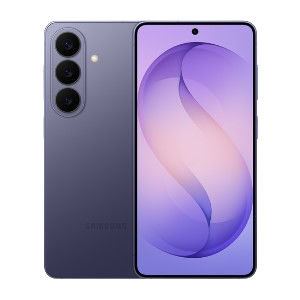
Samsung Galaxy S26
- SoC
- Snapdragon 8 Elite Gen 5
The Samsung Galaxy S26 features a 6.3-inch 120Hz display, a Snapdragon 8 Elite Gen 5 chip, and a 4,300 mAh battery. It includes a 50MP main camera with enhanced AI software, 256GB of base storage, and a slim 6.9mm profile, focusing on fast daily performance.
- Display
- 6.3-inch Dynamic AMOLED 2x